
Observe the Symptoms
Startup behavior, unusual sounds, intermittent failures, error messages, performance changes, and other symptoms can provide useful clues before anything is taken apart or replaced.
Finding the Cause Comes Before Choosing the Repair
An all in one computer can show the same outward symptom for several very different reasons. A system that will not start, freezes unexpectedly, shuts down, runs slowly, or loses access to hardware does not automatically point to one specific failed part.
Diagnostics are used to narrow the problem by examining how the computer behaves, what changes have occurred, and which hardware or software conditions can reasonably explain the symptoms.
Test the Likely Causes
The next step is to compare the symptoms with actual test results so that the repair decision is based on evidence rather than replacing parts simply because they might be responsible.
One Symptom Can Point in Several Directions
What appears to be a straightforward problem can involve several possible causes. A blank screen does not necessarily mean the display has failed, and a computer that suddenly becomes slow does not automatically have a storage problem. Looking at related symptoms together helps separate what is visible to the user from what is actually causing the failure.
The symptom is therefore the starting point of the diagnosis, not the diagnosis itself. Testing is what determines which possible causes can be eliminated and which ones deserve closer attention.
Useful Diagnostics Compare More Than One Kind of Evidence
A diagnostic result becomes more meaningful when it agrees with other information about the computer. The symptoms reported by the user, the behavior observed during testing, hardware condition, system information, and error records can each reveal a different part of the problem.
Hardware testing
System information
Error history
These sources do not always point in the same direction immediately. One test may eliminate a suspected component while another reveals a condition that was not obvious from the original symptom. The value comes from comparing the results rather than allowing one isolated reading to determine the conclusion.
A Passed Test Does Not Always End the Diagnosis
Intermittent problems may not appear during every test. A component can behave normally at one moment and fail under load, after warming up, or only under particular operating conditions.
When the reported problem cannot be reproduced immediately, the surrounding symptoms and circumstances still matter.
Timing can be evidence too. Knowing whether a failure occurs during startup, after extended use, during demanding work, or without any pattern can help determine what should be tested next.
Diagnosis Becomes More Useful as Possibilities Are Eliminated
At the beginning of a diagnosis, several explanations may fit the same symptom. Testing is used to reduce that list rather than trying to prove the first suspicion correct.
A power problem, for example, may initially involve the external adapter, internal power circuitry, motherboard, connections, or another component. Each useful result removes possibilities or directs attention toward a smaller part of the system.
The process is similar with performance problems, display failures, startup issues, and intermittent behavior. The diagnosis becomes stronger when the remaining explanation is supported by several observations rather than one convenient assumption.
Start Broad
Identify the reasonable causes that could potentially produce the symptoms being observed.
Test and Compare
Use the behavior of the computer and test results to eliminate explanations that no longer fit.
Narrow the Cause
Focus the repair decision on the conditions still supported by the available evidence.
Hardware and Software Problems Can Look Surprisingly Similar
A problem that appears physical can sometimes originate in Windows, a driver, firmware, or configuration. The reverse can also happen: symptoms that resemble an operating system problem may ultimately be caused by unstable memory, storage, power, cooling, or another hardware condition.
Slow Computer
Looks like a performance problem.Several Systems May Be Involved
Storage condition, available memory, background software, temperatures, startup activity, and operating system problems can all contribute to poor performance.
Blank Screen
Looks like a display failure.The Screen May Not Be the Cause
Display hardware is only one possibility. Memory, graphics, motherboard, firmware, power, or startup failures can prevent an image from appearing.
Repeated Restarts
Looks like a Windows problem.Hardware Can Produce Similar Behavior
Memory errors, unstable power, overheating, storage problems, and other hardware conditions can cause restarts that initially appear software-related.
Device Not Working
Looks like failed hardware.Configuration Can Be Responsible
Drivers, firmware, Windows settings, disabled devices, or software conflicts can sometimes prevent otherwise functional hardware from operating normally.
Separating these possibilities before choosing a repair helps avoid solving the wrong problem. The objective is not to label a symptom as hardware or software too early, but to determine which side of the system the evidence actually supports.
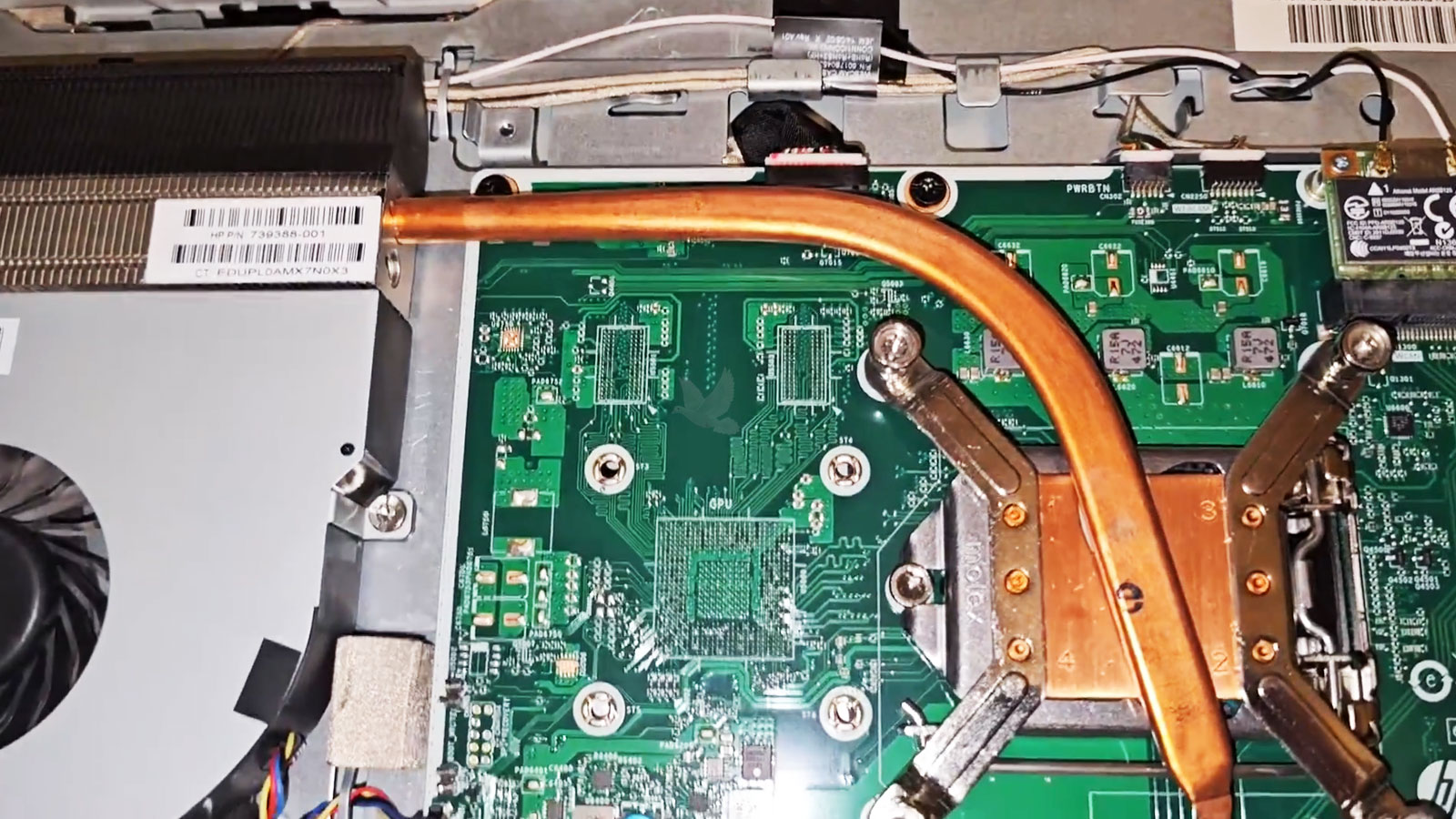
Reaching the Hardware Can Be Part of the Diagnostic Work
All in one computers place the display, motherboard, storage, memory, cooling system, power components, and other hardware within the same compact enclosure. When testing points toward something that cannot be evaluated adequately from the outside, the computer may need to be opened for closer inspection.
Internal access can make it possible to examine connections, check component condition, inspect cooling areas, test accessible hardware, or isolate a device that may be contributing to the problem. The amount of disassembly required depends on the design of the computer and what the earlier diagnostic results have already revealed.
Opening the Computer Should Have a Reason
The objective is not to disassemble the computer simply because it can be opened. Internal inspection should answer a diagnostic question that could not be resolved through the earlier stages of testing.
A Diagnosis Can Reveal More Than One Problem
Not every all in one computer reaches the diagnostic bench with a single isolated failure. A system may have one problem responsible for the immediate symptom while another condition is affecting reliability, performance, or normal operation.
For example, a computer that shuts down because of a cooling problem may also have a storage drive showing signs of deterioration. A startup failure may uncover a separate battery, memory, or software issue. Finding an additional condition does not mean that every item automatically needs to be repaired.
The Findings Should Be Separated by Importance
The problem preventing the computer from working should be distinguished from secondary findings and from conditions that may simply deserve attention in the future. That distinction makes it easier to decide what is necessary now and what can reasonably wait.
What the Findings Can Tell You
A useful diagnosis should make those differences understandable. The repair decision can then be based on what the computer actually needs rather than treating every finding as equally urgent.
The Diagnostic Result Should Make the Next Decision Easier
The purpose of diagnosing an all in one computer is not simply to produce a list of test results. It is to turn an uncertain symptom into useful information about what is happening, what appears to be responsible, and what should happen next.
Sometimes the result points toward a specific repair. In other cases, it may show that several conditions need to be considered, that additional testing is justified, or that a repair would not be practical for the computer involved.
Either outcome is useful when it replaces guesswork with a clearer understanding of the problem. From there, the decision to repair, replace a component, address a secondary issue, or leave the computer as it is can be made with better information.