
Replacing Storage Inside a MacBook Pro Starts With the Drive It Uses
MacBook Pro storage changed considerably across generations. Earlier models may contain a conventional 2.5-inch SATA hard drive or solid-state drive, while later generations moved to compact Apple-specific SSD modules and eventually to storage integrated directly with the logic board.
That difference matters when a drive has failed, storage capacity is no longer sufficient, or an older mechanical hard drive is being replaced with faster solid-state storage. Before choosing a replacement, the exact MacBook Pro model and its existing storage configuration need to be identified.
The Meaning of “Hard Drive Replacement” Changes With the MacBook Pro
Connection
A replacement has to use an interface that belongs with the MacBook Pro being serviced. Similar-looking storage devices are not automatically interchangeable simply because both are solid-state drives.
Compatibility Comes Before Capacity
Choosing replacement storage begins with identifying what the MacBook Pro was designed to accept. Model generation, physical drive format, connector type, and available mounting space can determine which replacement options are practical before storage capacity is even considered.
This is particularly important with Apple blade-style SSDs. Their narrow shape may resemble other compact solid-state drives, but physical appearance alone does not establish compatibility. The connector and storage design used by the particular MacBook Pro have to match the replacement being considered.
Older models with a 2.5-inch SATA drive provide a different situation. When that interface is present, replacing an aging mechanical hard drive with a compatible SATA solid-state drive can preserve the original storage connection while changing the type of drive installed.
Once compatibility is established, capacity can be selected according to how much usable storage is actually needed rather than trying to make an incompatible drive fit simply because its specifications appear attractive.
Capacity
After the correct storage type has been identified, available capacities can be considered according to the files, applications, and working space expected to remain on the MacBook Pro.
Different Generations Can Require Completely Different Storage
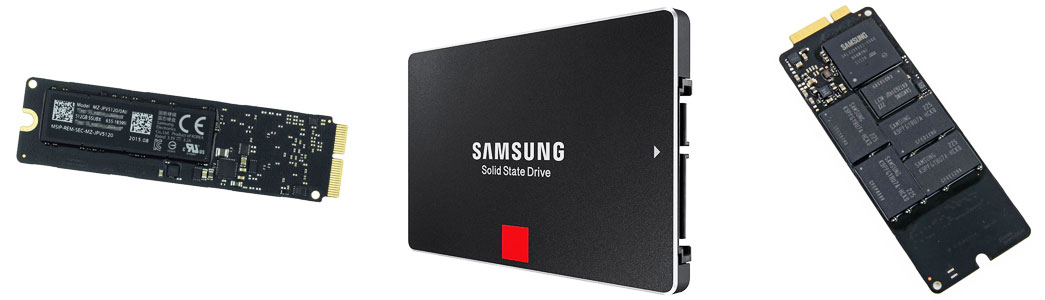
The physical differences between MacBook Pro storage devices become obvious when they are viewed together. A 2.5-inch SATA SSD and Apple blade-style storage may perform the same basic job, but their dimensions, connections, and installation requirements are very different.
The 2.5-Inch SATA Route
On MacBook Pro models designed around a 2.5-inch SATA bay, the storage device is a separate removable component connected through the computer’s SATA interface. This provides a relatively direct replacement path when the existing hard drive or SSD needs to be changed.
For a MacBook Pro still using a mechanical hard drive, moving to a compatible SATA SSD can also replace the older moving storage mechanism with solid-state hardware while continuing to use the interface already present in the computer.
The Apple SSD Route
Other MacBook Pro generations use compact removable SSD modules designed around Apple’s storage implementation. These drives occupy far less physical space than a 2.5-inch device and connect directly to the logic-board area rather than sitting inside a conventional drive bay.
The shape of the module alone is not enough to choose a replacement. Different Apple storage generations can have important compatibility differences, which is why the MacBook Pro model needs to be matched with the appropriate SSD before installation.
Installing the SSD Is Only Part of Returning the MacBook Pro to Use
Once compatible storage is installed, the MacBook Pro still needs a usable environment from which to operate. A blank replacement SSD does not contain the system, applications, settings, and personal information that existed on the previous drive.
What happens next depends on the condition of the original storage. When its contents remain accessible, information may be moved to the replacement. In other situations, the new storage may need a fresh macOS installation before available files and applications are restored.
The objective is to finish with more than newly installed hardware. The replacement storage needs to be properly prepared so the MacBook Pro is ready to return to use.
From New Storage to a Usable Mac
Prepare
The replacement storage is set up in the appropriate format so the MacBook Pro can use it properly as intended afterward without issues.
Install or Restore
macOS can be installed, or an appropriate restoration path can be used according to what is available from the previous storage.
Verify
The MacBook Pro can then be started from the replacement storage and checked to confirm that the new drive is recognized and operating properly.
Not Every Storage Replacement Begins With a Failed Drive
A MacBook Pro may need different storage for very different reasons. Understanding what is happening with the existing drive helps determine how the replacement should proceed and what can reasonably be done with the information already stored there.
When the Existing Drive Is Failing
Slow access, startup problems, read errors, disappearing storage, or other abnormal behavior can indicate that the existing drive is no longer operating reliably.
In that situation, replacing the hardware is only one concern. The condition of the original storage also determines whether its information can still be accessed normally or whether the failing drive needs to be handled more cautiously.
When the Existing Drive Still Works
A functioning drive may be replaced simply because its capacity has become restrictive or because an older mechanical hard drive is being upgraded to solid-state storage.
With healthy source storage, the replacement can be planned around the desired capacity and compatible hardware while also considering how the existing system and files will move to the new drive.
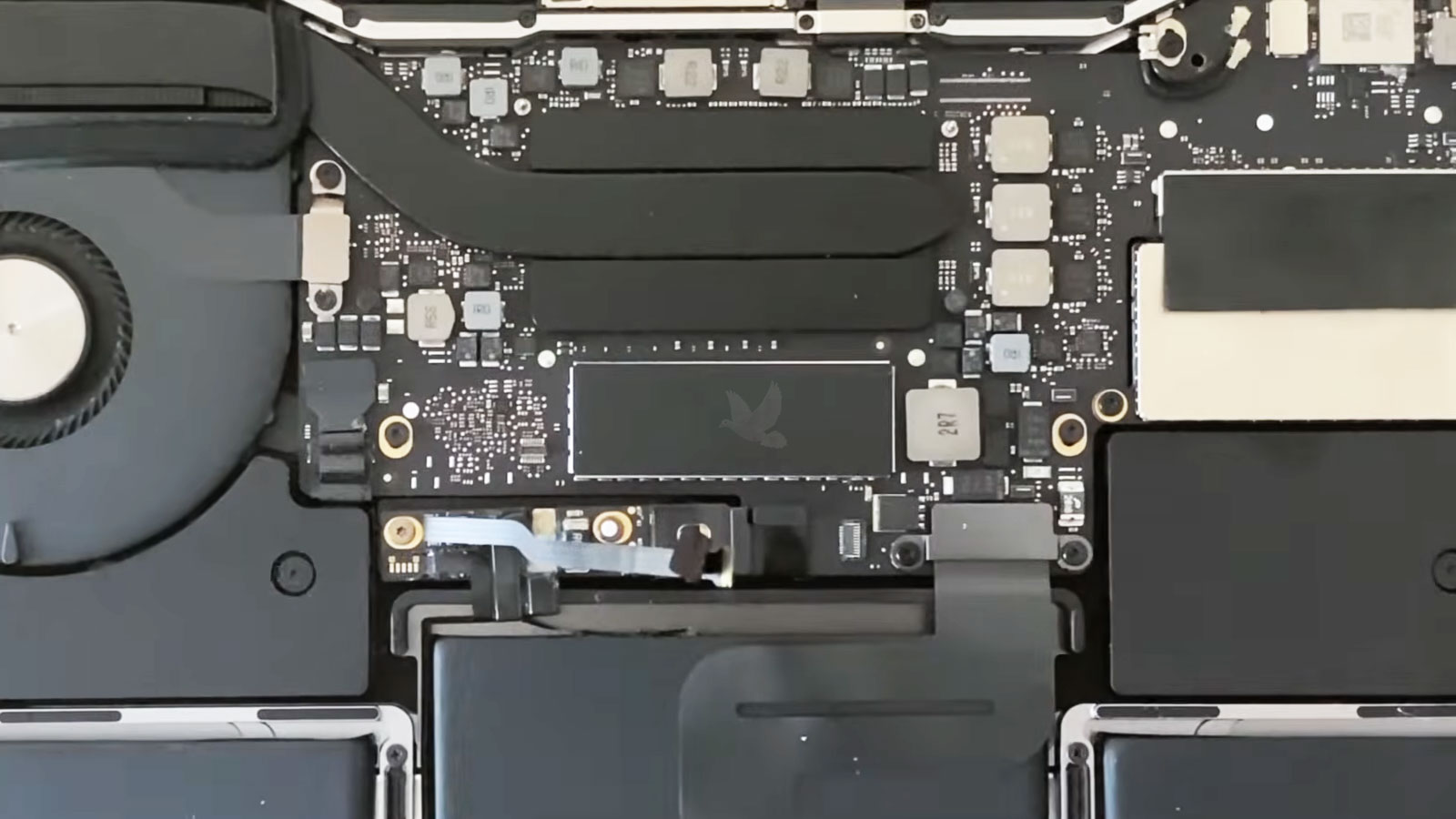
A compatible replacement still needs to be installed correctly within the storage arrangement designed for that MacBook Pro.
The Installation Has to Respect the MacBook Pro Around the Drive
Accessing the storage means working inside a computer where the battery, logic board, connectors, cables, and other components occupy the same limited space. The replacement should therefore be approached as work inside the MacBook Pro, not simply as swapping one drive for another.
The existing storage can be removed according to the mounting and connection method used by that model. The replacement then needs to sit correctly in its intended position and make a secure connection without forcing hardware that does not belong there.
Before the MacBook Pro is closed, the storage area can also be checked to make sure the installation has not left a cable displaced, a connector partially seated, or anything interfering with nearby components.
Once everything is back in place, the computer can move on to preparation and functional verification with the replacement storage installed.
A New Drive Should Prove More Than Its Capacity
After installation and preparation, the replacement storage can be checked as part of the working MacBook Pro. Recognition alone is a starting point. The computer should also start correctly, access the drive normally, and continue operating without storage-related behavior that would leave the replacement in question.
Detected
Confirm that the MacBook Pro recognizes the newly installed storage and reports the expected capacity.Consistently Recognized
The replacement should continue appearing correctly after restarts rather than being detected only during the initial test.
Bootable
The prepared replacement drive should provide a usable startup environment for the MacBook Pro.Starts Normally
Once macOS is ready, the computer should start from the new storage without storage-related interruptions during the boot process.
Accessible
Files, applications, and available storage should remain accessible during normal operation of the MacBook Pro.Ready for Use
Opening files and using applications helps confirm that the replacement storage is functioning beyond simply appearing in the system.
Stable
Continued operation provides an opportunity to observe the replacement storage beyond the first successful startup.Remains Available
The drive should stay recognized and usable without disappearing, disconnecting, or producing unexpected storage-related behavior.
When the Storage Needs to Change, the Replacement Should Fit the Mac
A failed drive, limited capacity, or an older mechanical hard drive can all create a reason to replace the storage inside a MacBook Pro. The appropriate replacement depends on the model, the storage design it supports, and what needs to happen with the information already on the existing drive.
MacBook Pro hard drive and SSD replacement is available in Miami for compatible models with removable storage. The process can include identifying the correct replacement, installing it properly, preparing the new storage for use, and confirming that the MacBook Pro recognizes and operates from it as expected.
When the existing drive remains accessible, its condition can also be considered before deciding how the system and available information should be handled during the change to the replacement storage.
Find the Right Storage Replacement
If the MacBook Pro needs a new drive, the model and existing storage configuration can be checked to determine which replacement options are appropriate.
Miami customers who would rather leave transportation out of the process can have the MacBook Pro picked up and brought back after service at no additional charge.