
The Trackpad Should Respond Naturally to Every Touch
A MacBook Air trackpad is used constantly for pointing, clicking, scrolling, gestures, and navigating through macOS. When its response becomes inconsistent, normal tasks can quickly become frustrating, especially when the problem affects only certain movements or appears intermittently.
A trackpad problem can involve physical movement, touch detection, clicking, gestures, or communication between the trackpad and the computer. Identifying exactly what is failing helps determine whether the issue is associated with the trackpad itself or something affecting its operation.
The pointer may move inconsistently, stop responding in certain areas, jump unexpectedly, or fail to follow finger movement normally. These symptoms can make even basic navigation difficult and may appear constantly or only at particular times.
A trackpad that feels unusually stiff, does not click as expected, or responds differently across its surface may have a physical problem that needs to be distinguished from a software setting or touch-response issue.
Scrolling, secondary click, zooming, swiping, and other supported gestures depend on consistent touch detection. When some functions work while others do not, the pattern of the failure can provide useful information during diagnosis.
Some trackpad problems appear only occasionally. Response may disappear and return, change after the MacBook Air has been running for a while, or behave differently between uses. Intermittent symptoms still need to be evaluated rather than assuming the trackpad is functioning normally.
The Trackpad Is Only One Part of the Diagnosis
Similar trackpad symptoms can develop for different reasons, which is why replacement should not be the automatic first conclusion. The condition of the trackpad, its connection, surrounding hardware, and macOS behavior can help narrow down where the problem is actually coming from.
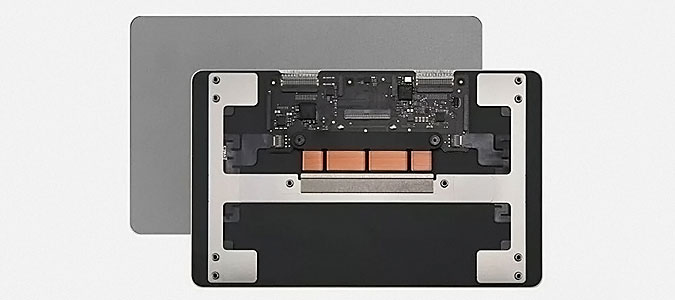
Replacement Makes Sense After the Failure Is Confirmed
When testing points to the trackpad itself, replacement addresses the failed component directly. The replacement part has to correspond to the particular MacBook Air so its dimensions, mounting points, connections, and operation are appropriate for that model.
Before installation, the surrounding area also provides an opportunity to look for anything that could have contributed to the original symptoms or interfere with the new trackpad.
A Replacement Trackpad Still Needs the Right Physical Feel
Installation is not complete simply because the new trackpad is connected. Its position, movement, and response should be checked after mounting so the component behaves naturally within the MacBook Air rather than merely producing an input signal.
Position
The trackpad should sit correctly within the surrounding opening, without an obviously uneven position or physical interference around its edges during installation.
Movement
Physical operation should feel consistent across the usable surface. Abnormal resistance or movement deserves attention before the MacBook Air is completely reassembled.
Response
Touch input and clicking behavior can be checked together so the replacement is evaluated as an operating component rather than only as a newly installed part.
A Trackpad That Feels Different Deserves a Look Underneath
Changes in clicking resistance, trackpad position, or the way the surface sits within the case can sometimes point to a physical condition below the trackpad. That possibility should be inspected rather than assuming the trackpad itself is automatically responsible.
Do Not Force a Trackpad That Has Become Difficult to Click
Increasing pressure on a trackpad that no longer moves normally does not identify the cause and may place additional stress on the component or surrounding parts.
Battery Pressure
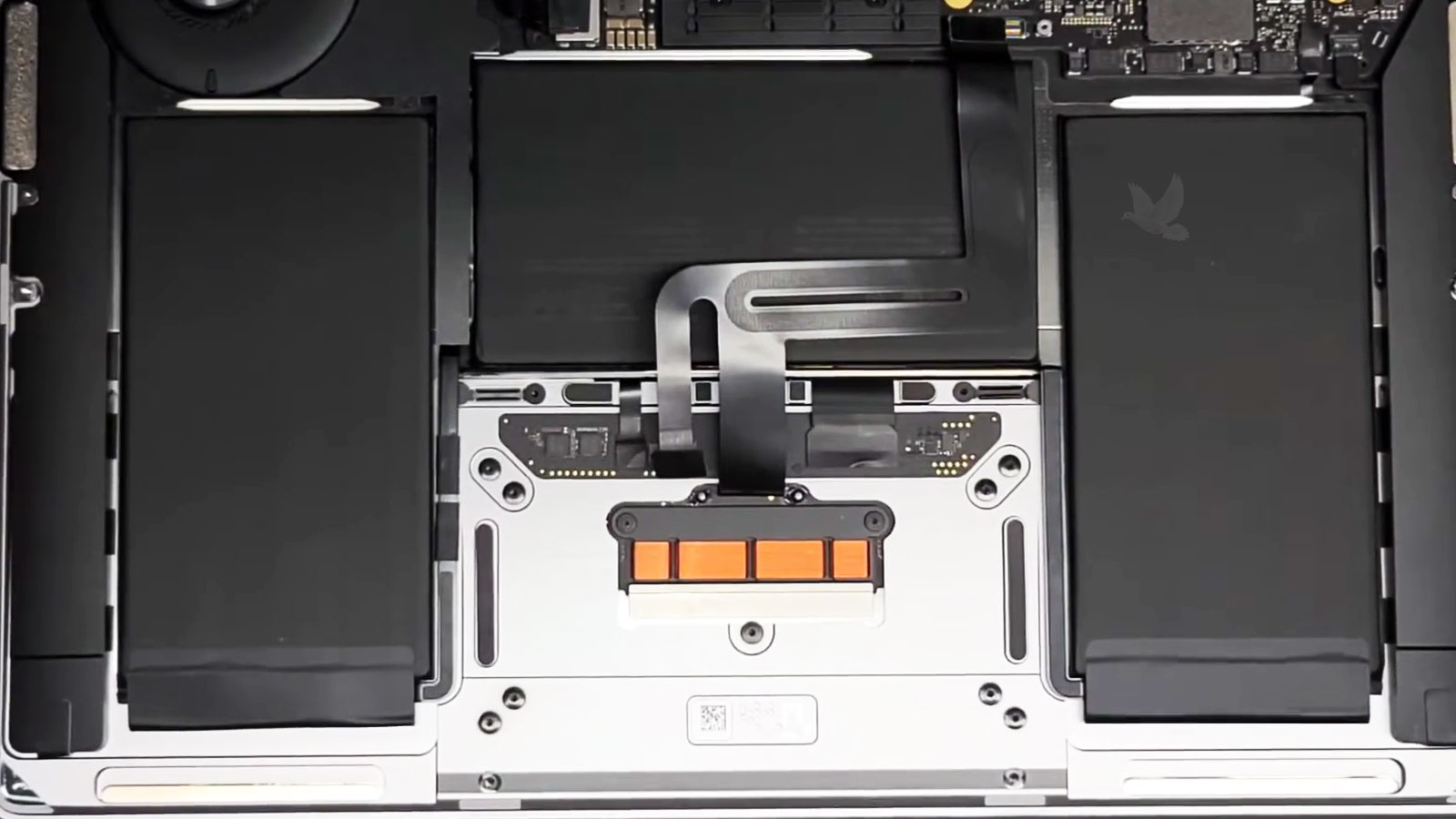
The battery sits beneath the trackpad area on MacBook Air models. If its physical condition changes and begins applying pressure where it should not, the trackpad can become difficult to operate or may no longer sit normally within the case.
A condition like this needs to be distinguished from an isolated trackpad failure because replacing the trackpad alone would not address the source of the pressure.
Look at the Physical Relationship Between the Parts
Inspection can reveal whether the trackpad has adequate clearance, whether anything beneath it is interfering with movement, and whether the surrounding structure remains in its expected position.
That distinction matters. A trackpad can produce a very real symptom even when another physical condition inside the MacBook Air is responsible for changing the way it feels or moves.
The Repair Has to Work Beyond a Single Click
A functioning trackpad has several jobs at once. After repair or replacement, testing different types of input helps confirm that the MacBook Air responds consistently across the functions normally controlled from the trackpad.
Pointer Control
Movement across the trackpad should translate into predictable pointer movement without unexplained jumps, interruptions, or areas that fail to respond.
Clicking
Clicking and secondary-click behavior should register consistently during normal use rather than responding only in certain areas or requiring unusual pressure.
Scrolling
Two-finger scrolling can be tested through different parts of macOS to confirm that movement remains smooth and reliably follows the user’s input.
Gestures
Supported multi-touch gestures can be checked to verify that the repaired trackpad recognizes more complex finger movements as expected.
Test It Again After Everything Is Back Together
A trackpad that responds correctly during an initial test still needs to be checked after the MacBook Air has been reassembled. Final testing confirms that normal operation remains consistent once the component is secured and the computer is back in its working condition.
Get Normal Trackpad Control Back
When clicking, pointer movement, scrolling, or gestures no longer respond the way they should, the problem can be evaluated to determine what is interfering with normal trackpad operation. If the trackpad itself has failed, the appropriate replacement can be installed and tested with the MacBook Air fully reassembled.