
Moving Files Is Not the Same as Rebuilding the Computer
A data transfer can be needed even when the original computer still works. Files may need to move to a replacement desktop, a new storage device, another computer, or separate external storage without changing everything else about the original system.
Moving Important Files From One System to Another
A data transfer can be needed even when the original computer still works. Files may need to move to a replacement desktop, a new storage device, another computer, or separate external storage without changing everything else about the original system.
The Source and Destination Both Matter
Documents, photos, business records, project folders, email archives, and other personal information can accumulate over many years. When a computer or storage device is being replaced, the important part is not simply copying a large number of files. It is making sure the information that matters reaches the correct destination in a usable form.
A Good Transfer Starts With Knowing What Actually Needs to Move
Not every file on an old computer needs to follow it to the next system. Temporary files, outdated program data, duplicate downloads, and years of accumulated clutter can occupy considerable storage without being useful on the destination computer.
Before transferring data, it helps to identify what is important, where it is stored, and whether anything exists outside the familiar folders. This is particularly useful when years of information have been spread across multiple user accounts, drives, or locations.
Where the Data Is Going Changes How the Transfer Is Handled
Moving files is not always a computer to computer process. The destination might be a new desktop, replacement internal storage, an external drive, or another device being prepared for continued use. Available capacity, file organization, and the intended use of the destination all affect how the information should be transferred.
When files are being moved to a replacement computer, the goal is usually to place important information where it can be found and used naturally on the new system. User folders, available storage, and the way the new computer will be used should be considered before simply copying everything into one location.
A larger or newer internal drive may become the destination when the original storage is being upgraded or replaced. Depending on the situation, selected files can be transferred independently rather than treating the process as a complete duplication of the old drive.
An external hard drive or SSD can provide a practical destination for files that need to be preserved, reorganized, or moved without immediately placing them on another computer. Capacity and the file system used by the destination should be appropriate for the amount and type of information being transferred.
Sometimes the destination is a computer already in use. In that situation, the transfer should account for existing folders and user information so that incoming files remain organized rather than being mixed unnecessarily with data already on the system.
The Source Drive Should Be Stable Enough to Read Reliably
A normal data transfer assumes that the original storage can be read consistently. When a hard drive or SSD responds normally, files can usually be copied and organized without treating the process as a recovery situation.
Problems such as repeated disconnections, unusually slow reading, file errors, or inconsistent detection change that assumption. If the source storage is unstable, continuing an ordinary transfer may not be the appropriate way to handle important information.
Check the Source Before Moving Large Amounts of Data
When these conditions are not present, the priority may need to change from transferring everything normally to protecting access to the information that matters most.
A Transfer Is More Useful When the Files Remain Organized
Moving the data successfully is only part of the process. Keeping important information organized at the destination makes it easier to recognize, locate, and continue using after the transfer is complete.
Keep Familiar Folders
Existing folders often reflect years of organization by project, customer, date, subject, or another system already familiar to the user.Preserve Useful Structure
Keeping that structure intact can make transferred information easier to recognize and use without forcing everything into a new arrangement.
Separate Different Sources
Data may come from more than one drive, computer, partition, or user account during the same transfer.Know Where the Files Came From
Keeping those sources distinguishable helps prevent unrelated folders from being mixed together and makes the destination easier to review later.
Watch for Duplicate Files
Older computers often contain repeated folders, copied photographs, duplicate documents, and previous versions of the same information.Reduce Unnecessary Copies
Identifying obvious duplication can keep the destination cleaner and prevent useful files from becoming buried inside multiple copies of the same material.
Make Important Files Easy to Find
A successful transfer should leave documents, photos, projects, and other important information in locations that make sense.Leave the Destination Usable
Good organization makes it easier to continue working with the transferred data instead of spending additional time searching through unfamiliar folders afterward.
Files Can Be Transferred Without Relying on the Original Windows Installation
A computer does not always need to start normally for its files to be moved. When Windows is corrupted, startup is damaged, or another system problem prevents normal access, the storage device can sometimes be connected independently so that the information can be approached without first repairing the operating system.
This can be particularly useful when the computer itself is being replaced or when obtaining the files is more important than restoring the original Windows installation.
Direct Access to the Storage Device
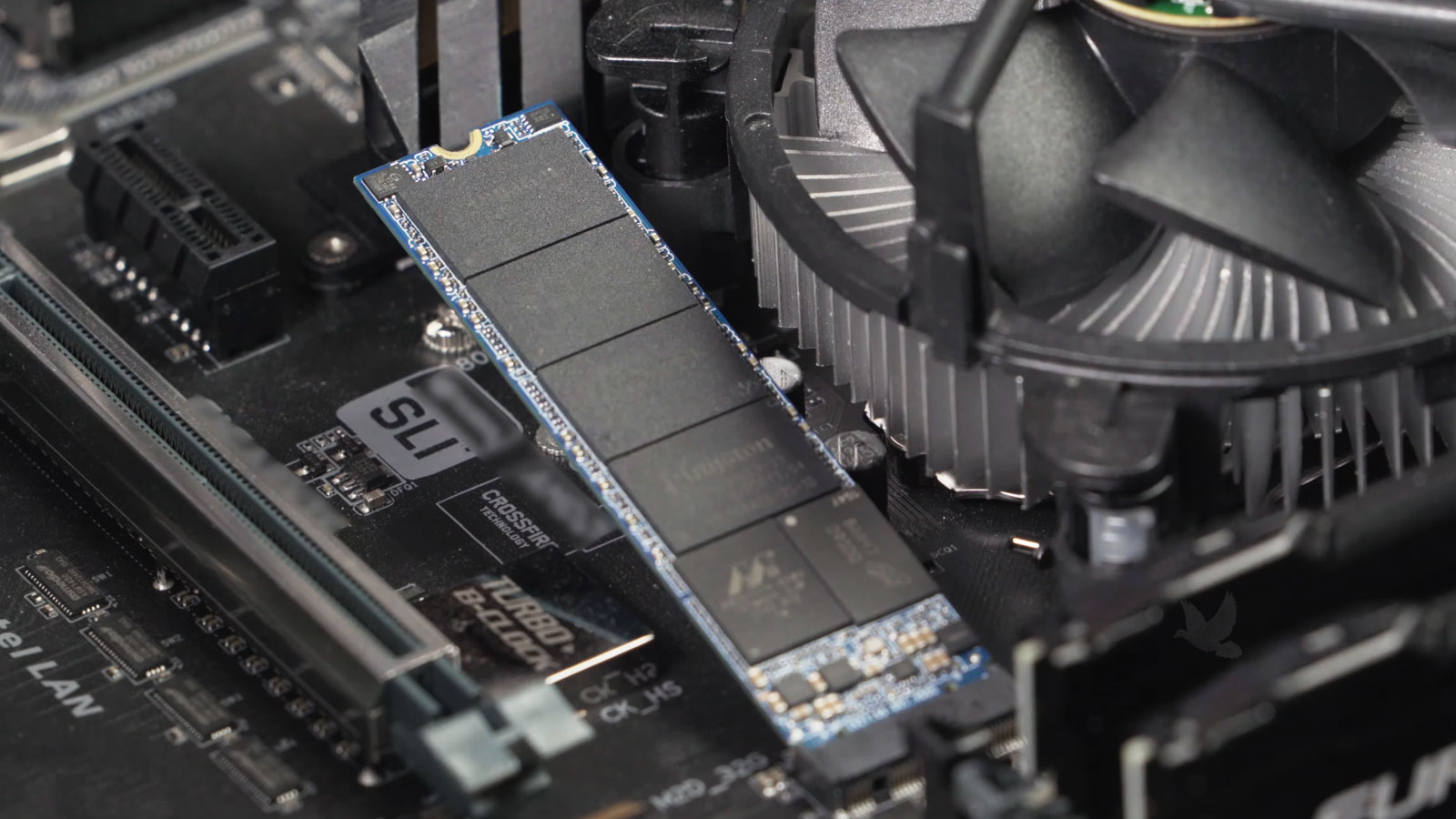
Hard drives, SATA SSDs, and M.2 storage can be connected through appropriate hardware when the condition of the device permits it. Once accessible, the required files can be transferred to another computer or storage device without depending on the failed installation to complete the process.
Not Everything on the Old Computer Moves in the Same Way
A data transfer can move a wide range of personal and business information, but copying files is not the same as recreating the entire computer. Some information can be transferred directly, while programs, settings, and certain application data may require additional steps before they can be used on the destination system.
| Type of Information | What to Expect |
|---|---|
| Documents, Photos and Videos | Personal files can generally be transferred directly and opened on the destination when compatible software is available. |
| Email Archives and Local Data | Locally stored email and application data may require locating the correct files and configuring compatible software before the information can be used normally. |
| Installed Programs | Most applications cannot be transferred simply by copying their program folders. They generally need to be properly installed on the destination computer. |
| Windows and System Settings | A file transfer does not automatically reproduce the complete Windows environment, hardware configuration, preferences, or every setting from the original system. |
| Browser and Application Information | Bookmarks, profiles, and other locally stored application information may require separate handling depending on how the original software stored the data. |
A Successful Transfer Should End With Accessible, Usable Files
The purpose of moving data is not simply to fill another drive with copied folders. Important information should arrive at the destination in a form that can be located, opened, and used without depending on the original computer.
Before the source is retired, reformatted, or placed aside, the transferred information should also be checked where practical. Confirming important folders and representative files provides a better indication that the information needed from the original system has reached its new location.
Move the Files That Matter
Data transfer service is available for desktops being replaced, storage upgrades, corrupted Windows installations, computer hardware problems, and other situations where important files need to be moved safely from one location to another.
The source, destination, amount of data, and condition of the original storage can be evaluated before choosing an appropriate transfer method.