
When the Storage Drive Becomes the Problem
A failing, damaged, or inadequate drive can affect startup, performance, file access, and the overall reliability of an all in one computer.
Replacing the Drive Can Restore More Than Storage Space
The hard drive or solid-state drive is where Windows, applications, settings, and personal files are stored. When that device begins to fail, the symptoms can extend far beyond a simple shortage of space.
Slow startup, freezing, repeated errors, missing files, unusual drive activity, or a computer that no longer loads Windows correctly can all lead to the storage device being evaluated as part of the repair.
If replacement is appropriate, the job involves more than installing another drive. The condition of the original storage, the type of replacement, access to existing data, and what the computer will need afterward all affect how the replacement should be handled.
The Condition of the Original Drive Changes What Happens Next
A drive that is still readable is very different from one that is unstable, partially accessible, or no longer detected. Before replacement begins, the condition of the existing storage helps determine whether data can be copied normally, whether additional precautions are needed, or whether the replacement should proceed without relying on the old drive.
| Original Drive Condition | What It Can Mean for the Replacement |
|---|---|
| Working Normally | Data and settings may be transferred more directly before the old drive is removed, depending on what the user wants preserved. |
| Slow or Unstable | The drive may still be accessible, but copying should be approached carefully because repeated errors or interruptions can affect the transfer process. |
| Partially Accessible | Some files may remain available while other areas of the drive cannot be read reliably. Data handling may need to be separated from the physical replacement itself. |
| Not Detected or Failed | The computer may require a new drive and a fresh system setup, while recovery of the old data becomes a separate question based on the drive’s actual condition. |
The replacement itself may be straightforward, but the state of the original storage determines how much can be preserved and what should be attempted before the computer is rebuilt around the new drive.
The Replacement Drive Should Fit the Computer and the Way It Is Used
Replacing a failed drive does not necessarily mean installing the same capacity, technology, or exact model that came with the computer. The replacement needs to be physically and technically compatible, but it can also be selected according to how much storage is actually needed and how the computer is expected to perform afterward.
An older all in one that originally used a mechanical hard drive, for example, may support a solid-state drive that provides much faster startup and application response. A computer already using an SSD may instead need a compatible replacement with similar or greater capacity.
What Matters When Selecting the New Drive
The objective is not automatically to install the largest or most expensive drive available. A good replacement is one that works correctly with the computer and provides the capacity and performance that are useful for that particular system.
A New Drive Still Needs a Usable Computer Built Around It
Installing the replacement drive solves the physical storage part of the repair, but a new drive normally begins without the operating system, applications, user accounts, or settings that made the computer usable before.
What happens next depends partly on the condition of the original drive. When the existing system can be transferred reliably and doing so makes sense, much of the familiar environment may be preserved. When the old installation is damaged, unstable, or unavailable, starting with a clean operating system can provide a better foundation for the replacement.
Preserving the Old Setup Is Not Always the Best Choice
Copying an existing installation can also carry existing software problems, damaged system files, unwanted programs, or configuration issues onto the new storage. The decision should therefore consider the condition of the software as well as whether the old drive can still be read.
After the Drive Is Installed
The goal is a computer that can return to normal use, not simply a new drive sitting inside the enclosure.
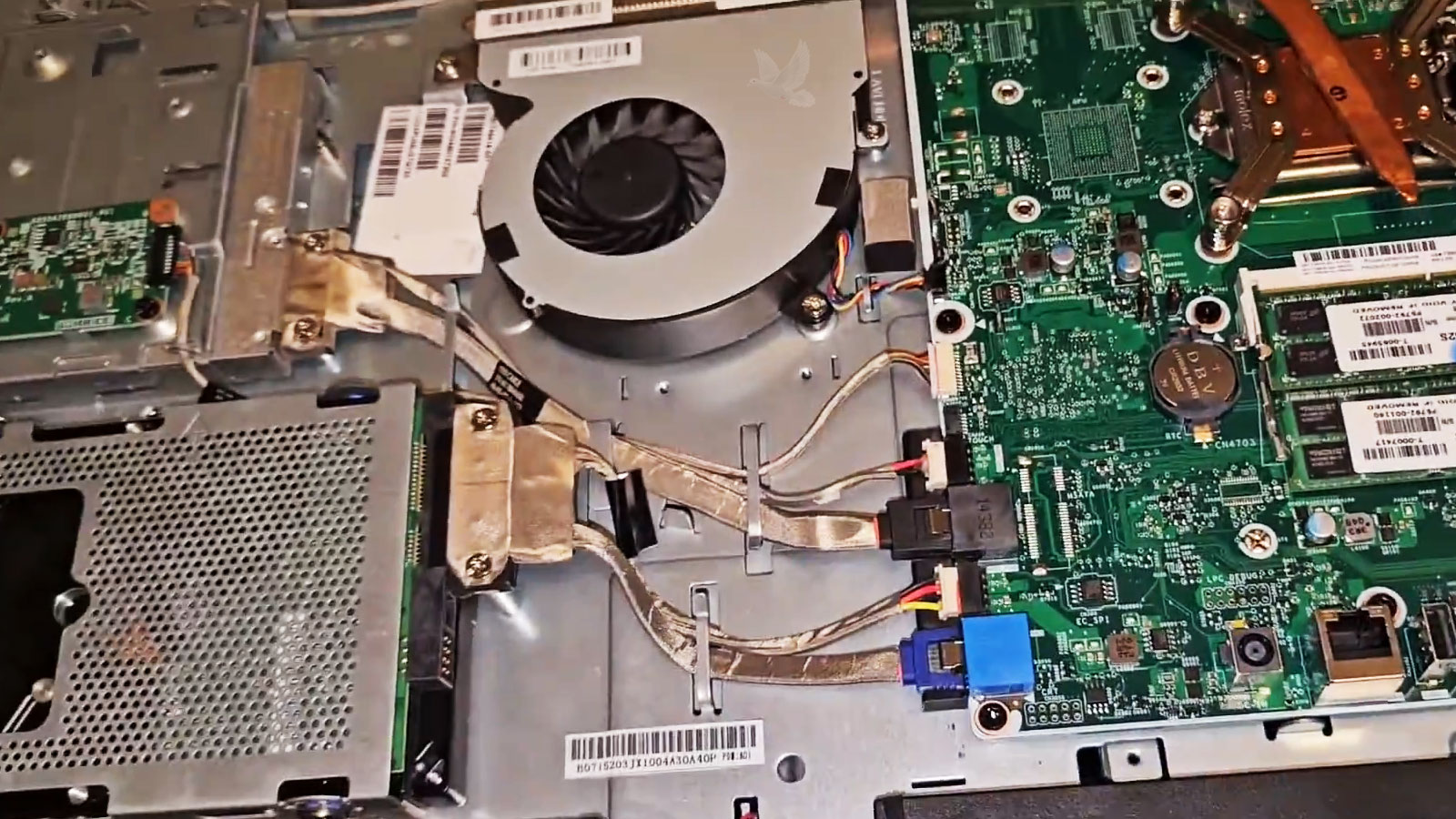
In an All in One, Getting to the Drive Is Part of the Job
Unlike a conventional desktop tower, an all in one computer places its storage behind the display and within the same enclosure as the motherboard, cooling system, power components, and other hardware. Reaching the drive can require removing covers, stands, shields, cables, or other internal parts depending on how the manufacturer designed the computer.
The location also varies considerably between models. Some drives are relatively accessible once the rear enclosure is removed, while others sit deeper within the computer or near components that have to be handled carefully during disassembly.
Access Should Not Create a Second Problem
Connectors, display cables, wireless antennas, mounting hardware, and plastic retaining points can all be encountered on the way to the storage device. The computer needs to be opened far enough to replace the drive correctly without turning an otherwise straightforward storage repair into damage somewhere else in the system.
Once the replacement is installed and the computer is reassembled, the drive can be checked as part of the completed system rather than assuming that installation alone means the repair is finished.
Installation Is Only Part of the Result
A replacement drive should not be considered finished simply because the computer turns on and Windows recognizes the new storage.
The Computer Should Be Checked After the Replacement
Once the new drive is installed and the operating system is usable, the computer can be checked again under normal conditions. Startup, storage recognition, file access, system responsiveness, and basic operation help confirm that the replacement is functioning as expected.
This is especially important when the original symptoms included freezing, unusually slow performance, startup failures, or intermittent errors. Those symptoms should be compared with the behavior of the computer after the new storage is in place.
A New Drive Cannot Correct an Unrelated Failure
If a problem remains after replacement, that result matters too. Memory, cooling, power, motherboard components, Windows configuration, or another condition may have contributed to symptoms that initially appeared to come entirely from the storage device.
Verifying the completed repair helps distinguish a successful drive replacement from a computer that still has another problem requiring attention.
Sometimes Replacement Makes More Sense Than Continuing With the Old Drive
Storage problems do not always begin with a completely failed drive. A computer may still start and remain usable while the drive becomes increasingly slow, unreliable, or difficult to access. In other situations, the existing drive may still function normally but no longer provide the performance or capacity that makes sense for the computer.
The reason for replacing the drive should determine the objective of the job. For one computer, reliability may be the priority. For another, the goal may be improved performance or additional capacity. In either case, the replacement should solve a practical need rather than being performed simply because a newer drive is available.
A Drive Replacement Should Leave the Computer Ready for Its Next Use
Whether the original drive has failed or an older drive is being replaced for better performance, the finished result should be more than newly installed hardware. The replacement needs to be compatible, properly installed, recognized by the system, and prepared for whatever the computer needs afterward.
The condition of the old drive also determines what can reasonably be carried forward. Existing data may be transferable, the previous Windows installation may or may not be worth preserving, and a severely failed drive can create a separate recovery question. Those decisions are best made around the actual condition of the computer rather than assuming every replacement follows the same procedure.