
Finding the Cause Before Deciding on the Repair
A desktop computer can show the same symptom for very different reasons. Slow performance, freezing, startup problems, unexpected shutdowns, missing devices, unusual noises, or repeated errors can come from hardware, software, storage, power, temperature, or a combination of issues.
Good diagnostics focuses on identifying what is actually happening before deciding what should be repaired, replaced, adjusted, or left alone.
What the Symptoms Can Point Toward
Diagnosis Is a Process of Narrowing Down the Possibilities
A useful diagnostic process does more than confirm that something is wrong. The symptoms, operating behavior, hardware condition, and test results can be considered together to eliminate unlikely causes and concentrate on the areas most likely to be responsible.
Confirm the Symptoms
Understanding when the problem occurs and what the computer does at that moment provides a starting point. A problem that appears during startup can lead in a different direction from one that develops only under heavier use.
Inspect the System
Connections, internal components, cooling conditions, storage devices, and other visible factors can reveal problems that should be addressed before more involved testing begins.
Test Likely Causes
Memory, storage, temperatures, power behavior, software, and individual components can be checked as appropriate to the symptoms rather than testing or replacing parts without a reason.
Compare the Results
Results from different checks help separate the original symptom from its underlying cause. That information provides a more useful basis for deciding what the computer actually needs.
Hardware and Software Problems Can Produce Similar Symptoms
A desktop that freezes, restarts, becomes slow, or fails to load normally does not automatically have a hardware failure. Software corruption, drivers, operating system problems, unwanted programs, and damaged system files can sometimes create symptoms that resemble defective components.
The opposite can also happen. A deteriorating storage device, unstable memory, overheating component, or power problem may initially appear to be a Windows or software issue. Separating these possibilities helps avoid spending time on a solution that does not address the actual cause.
Clues That Help Separate the Possibilities
Different Parts of the System May Need Different Tests
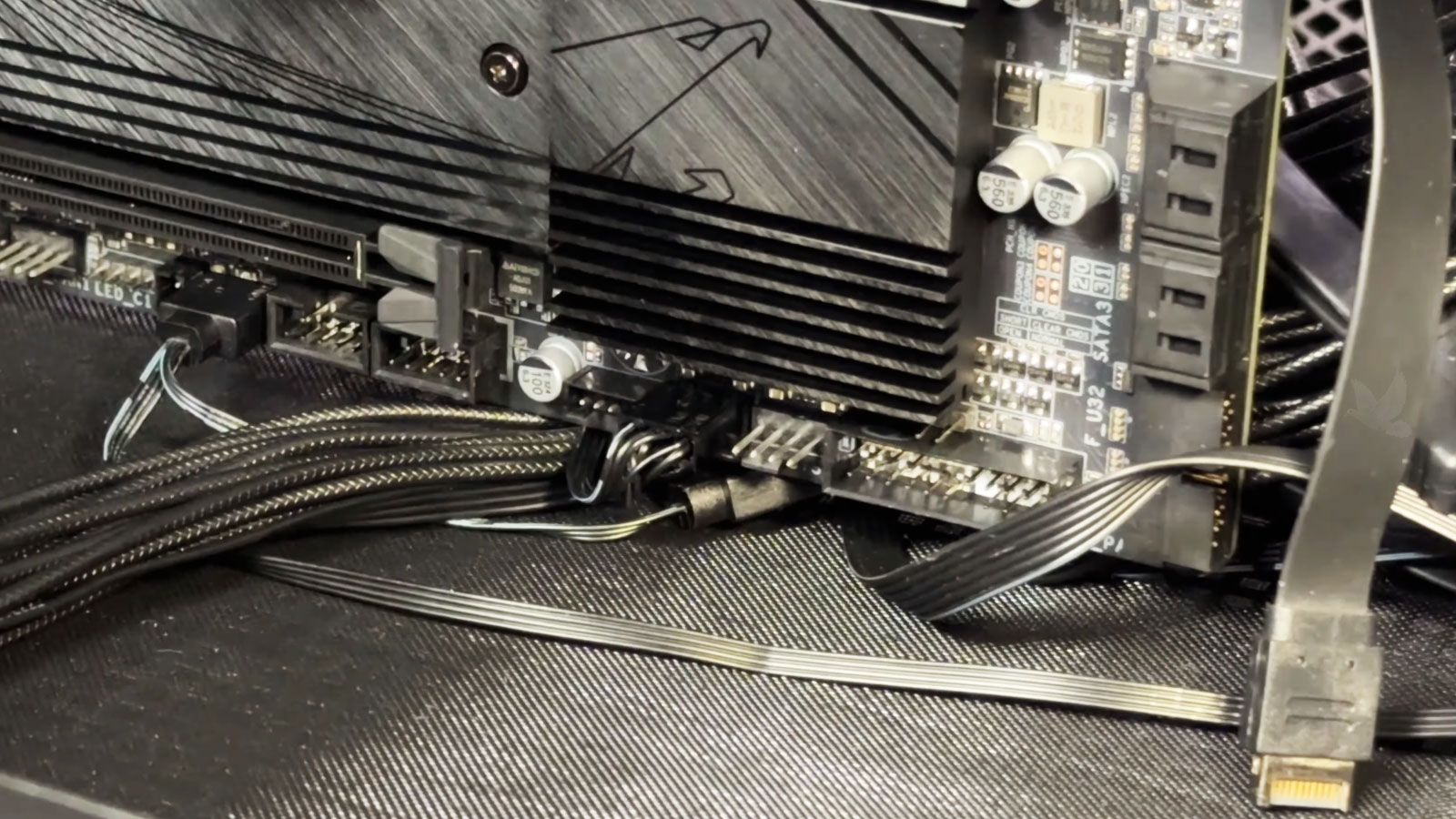
A desktop computer contains several systems that depend on one another. Diagnostics can concentrate on particular components when the symptoms point in that direction, while broader problems may require checking several areas before the source becomes clear.
Some Problems Only Appear Under Certain Conditions
A desktop may behave normally during basic use and develop problems only after running for a while, processing a demanding task, accessing a particular drive, or placing additional load on certain components. Intermittent behavior can make a problem more difficult to identify because a quick inspection may not reproduce it.
Recreating the circumstances in which the symptom appears can provide important information about what changes immediately before the failure.
Reproducing the Problem Can Reveal the Pattern
Temperature changes, increased power demand, memory usage, storage activity, graphics load, and extended operating time can expose problems that remain hidden while the computer is sitting idle.
The objective is not simply to make the computer fail again. It is to observe what happens before and during the problem so those results can be compared with the components and processes involved.
The Failed Part May Not Be the Original Cause
Finding a component that is not working correctly can answer one question without answering all of them. In some cases, another condition in the computer may have contributed to the failure or may continue causing problems after the affected part is replaced.
Looking at the relationship between components can help determine whether the problem is isolated or whether another area deserves attention before deciding on the repair.
| First Finding | What May Still Need to Be Checked |
|---|---|
| Storage Drive Errors | Drive health, connections, power delivery, file system condition, and whether the errors are isolated to the storage device. |
| Unexpected Shutdowns | Operating temperatures, power supply behavior, motherboard power delivery, connected hardware, and the conditions present when the shutdown occurs. |
| Memory Errors | Individual memory modules, memory slots, configuration, compatibility, and whether the errors remain associated with the same component during testing. |
| Graphics Problems | Graphics hardware, temperatures, power connections, drivers, display connections, and whether the problem occurs only under increased graphics activity. |
| USB or Front Panel Problems | Individual devices, internal connections, motherboard headers, ports, cables, and whether the problem follows a particular connection or remains within the computer. |
The Diagnosis Should Lead to a Clear Next Step
Finding the source of a problem does not automatically mean that a particular component should be replaced. The results may point toward a repair, a software correction, or simply an adjustment that restores normal operation without unnecessary parts.
Repair the Problem
A specific hardware or connection problem may be identified as the source of the symptoms.Address the Confirmed Cause
When testing consistently points to a particular failure, the repair can concentrate on that area instead of replacing unrelated components.
Correct the Software
The hardware may test normally while Windows, drivers, configuration, or other software remains responsible for the problem.Resolve the System Issue
Correcting the software problem may restore normal operation without replacing hardware that is still functioning properly.
Make an Adjustment
Some problems can result from connections, cooling conditions, settings, or another correctable condition rather than a failed component.Avoid an Unnecessary Replacement
When the underlying condition can be corrected directly, replacing functioning parts adds expense without addressing the computer more effectively.
Good Diagnostics Can Prevent the Wrong Repair
Replacing a component based only on a symptom can solve the problem when the assumption happens to be correct, but it can also leave the original issue unchanged. Testing provides a better basis for deciding whether the computer needs hardware repair, software work, an adjustment, or a different approach.
A useful diagnosis should leave the problem better understood than when the process began. The findings can then guide the next decision without treating every possible cause as something that needs to be repaired.
Have the Desktop Problem Evaluated
Diagnostic service is available for desktops with startup failures, freezing, unexpected shutdowns, performance problems, hardware errors, device detection issues, and other behavior where the cause is not yet clear.
The symptoms and condition of the computer can be evaluated before determining what repair or corrective work is appropriate.