
A Computer Problem Can Affect More Than One Part of the System
A computer can show several symptoms at the same time even when they are connected to one underlying condition. Slow startup, unstable applications, missing devices, unusual heat, charging problems, or unexpected restarts may appear to be separate issues until the behavior is examined as a whole.
That matters because troubleshooting each symptom independently can lead in several different directions. A better starting point is to determine whether the changes appeared together, whether one began before the others, and whether the same condition could reasonably explain more than one of them.
Several symptoms do not always mean several failures.
A storage problem can affect startup and application performance. Unstable power can influence charging, shutdowns, and connected hardware. Excessive temperature can change performance long before the computer finally turns itself off.
Looking for relationships between symptoms can make the diagnosis more focused and reduce unnecessary repairs.
Details Worth Connecting
The timing and combination of these changes can be just as useful as the individual symptoms themselves.
Not Starting Can Mean Several Different Things
When someone says a computer will not start, the description can refer to very different conditions. One machine may show no response at all, while another powers on but never produces a picture. A third may display its manufacturer logo and stop before the operating system loads.
Identifying how far the computer progresses can help narrow the area that needs attention.
Knowing where startup stops provides more useful information than simply knowing that the computer did not reach the desktop.

A Computer Can Behave Differently After It Warms Up
A computer may start normally and operate without obvious trouble for several minutes before freezing, restarting, losing a device, producing display problems, or shutting down. If the same pattern returns after the machine has been allowed to cool, temperature becomes an important part of the diagnosis.
Heat affects more than the processor. Memory, storage devices, power circuitry, graphics hardware, motherboard components, and physical connections can behave differently as their operating temperature changes.
The amount of time before the problem appears can also provide useful information. A failure that consistently develops after a similar period of operation may suggest a different investigation from one that occurs immediately after power is applied.
Cooling the computer may temporarily remove the symptom without correcting what caused it. Testing should distinguish between a cooling system that is unable to control temperature and another component that becomes unstable as it warms.
A computer that works correctly only while cold is not necessarily operating normally.
The Device That Stops Working May Not Be the Device With the Problem
When a printer, external drive, monitor, USB device, docking station, or another accessory suddenly stops working, replacing the connected device may seem like the obvious solution. But communication between a computer and external hardware depends on more than the accessory itself.
The cable, connector, port, power source, operating system, drivers, controller hardware, and device can all participate in the same connection. Testing the relationship between them can help determine where the interruption actually occurs.
Changing one part of the connection at a time can reveal where the problem follows, instead of replacing several components based on the same symptom.
Liquid Damage Does Not Always Appear at the Time of the Spill
A computer exposed to liquid may shut down immediately, but it can also continue working afterward. That temporary operation can create the impression that nothing serious happened, especially when the amount of liquid was small or the visible surface dried quickly.
Inside the computer, the situation can be different. Liquid may reach connectors, component leads, circuit board surfaces, or areas where residue remains after the moisture itself is gone. Electrical activity while those areas are contaminated can contribute to additional damage.
Dry and electrically clean are not the same condition.
Corrosion can also develop after the original exposure, which means a symptom may appear later rather than during the spill itself. Charging problems, keyboard faults, unstable connections, startup trouble, or complete loss of operation can therefore have a history that reaches back to an earlier liquid event.
When liquid exposure is known or strongly suspected, that history should be considered during diagnosis even if the computer continued working for some time afterward.
What Can Continue Afterward
The time between exposure and failure does not necessarily eliminate the connection between them.
A Drive Can Still Work While Becoming Unreliable
Storage problems do not always begin with a drive disappearing completely. Files may still open and the computer may continue starting while other changes begin to appear.
Long pauses, inconsistent transfer speeds, repeated errors, corrupted information, or unusual delays when accessing particular files can make the condition of the storage device worth investigating.
The important question is not simply whether the drive can still be accessed, but whether it can read and write information consistently.
Reading Data
Files that take unusually long to open, produce repeated errors, or become inaccessible can indicate difficulty retrieving information reliably.
Writing Data
Saving, installing, updating, or copying information places demands on storage. Problems during these operations can reveal instability that browsing may not expose.
Preserving Data
When storage reliability is questionable, protecting important information can become more urgent than continuing to test the computer through normal daily use.
Continued access can provide an opportunity to protect important data, but it should not be mistaken for proof that the storage device is healthy.
Some Hardware Failures Can Be Repaired Below the Board Level
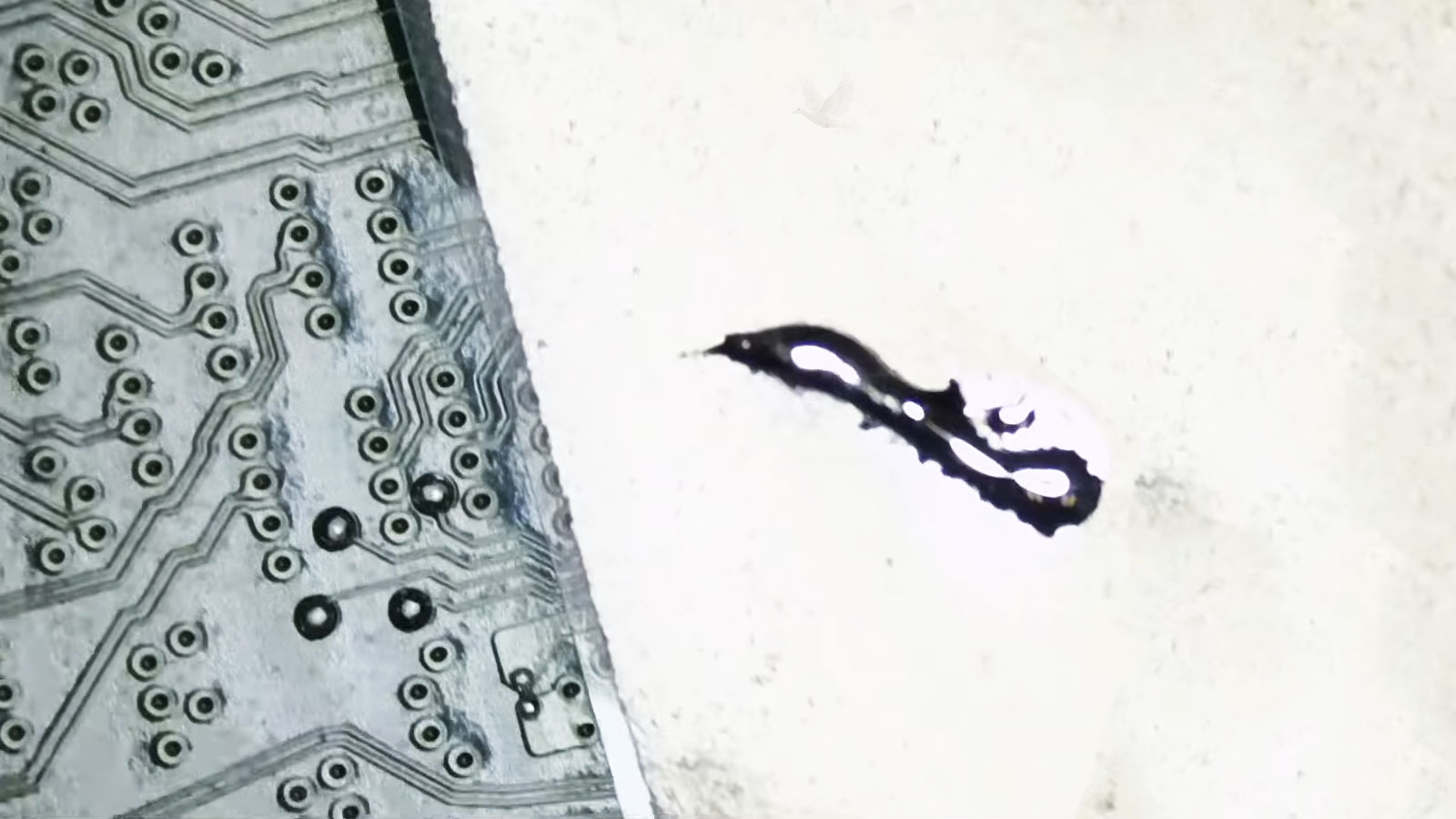
When a motherboard develops a fault, replacing the entire board is not always the only possible repair path. The problem may be concentrated around a damaged connector, failed integrated circuit, power control component, corrupted firmware, or another specific area of the circuitry.
Finding that kind of fault requires a different approach from replacing memory, storage, batteries, or other removable parts. Electrical measurements and circuit testing can be used to determine what the board is receiving, what it is producing, and where expected behavior changes.
Component level repair can involve microsoldering, connector repair, replacement of individual electronic components, BIOS recovery or programming, and other work performed directly on the circuit board.
Whether that approach makes sense depends on the fault, the condition of the board, the availability of appropriate components, and the practical value of the repair.
The motherboard can be the location of a failure without the entire motherboard being the failed part.
The Problem Helps Determine Where the Work Needs to Happen
A useful service decision is not only what needs attention, but what kind of access the problem requires. Physical damage and internal hardware faults normally require direct access to the computer, while certain software, configuration, email, and connectivity problems may be investigated without transporting the machine.
The surrounding environment can matter as well. A problem involving office equipment, a local network, or several connected systems may need to be examined where those systems are actually being used.
Choosing the appropriate type of access can keep a straightforward problem simple while still allowing physical or onsite diagnosis when the equipment or environment needs to be examined directly.
The Next Step Should Match the Problem
Some computer problems can be resolved without extensive repair. Others require testing, disassembly, replacement components, circuit work, or attention to information that needs to be protected before anything is changed.
For residents of El Portal, computer repair is available for problems that need hands on diagnosis and repair. Free pickup and return is available within Miami, allowing the computer to be evaluated without requiring a trip to a repair location.
The purpose of the evaluation is not to make every problem larger than it is. It is to determine what actually requires attention and what does not.
A repair decision becomes much easier once the condition of the computer is understood.