
Routine Care That Helps a Desktop Run Cleaner and More Reliably
Dust, restricted airflow, aging thermal material, loose debris, and neglected internal components can gradually affect how a desktop computer operates. The changes are not always dramatic at first. Fans may become louder, temperatures may rise, performance may become less consistent, or the computer may begin collecting more heat during ordinary use.
Cleaning and maintenance are most useful when they are approached as preventive care rather than simply removing visible dust. Internal condition, airflow, cooling performance, cable placement, fan operation, and the general state of the hardware can all influence how efficiently the system works and how much stress individual components experience over time.
Dust Changes More Than the Appearance of a Computer
Inside a desktop, cooling depends on air moving through relatively small openings and across components that continuously produce heat. Dust gradually collects on intake areas, fan blades, heat sinks, filters, vents, and other surfaces along that path. A computer can therefore look reasonably clean from the outside while airflow inside the case is already becoming restricted.
As cooling becomes less efficient, fans may need to run faster or for longer periods to maintain acceptable temperatures. The effect can become particularly noticeable during gaming, video work, demanding applications, or other sustained workloads that place greater thermal demand on the processor and graphics hardware.
The concern is not simply that dust exists inside the case. What matters is where it accumulates and how it affects the cooling system.
Cooling Performance Can Change Even When the Fans Are Clean
Fans and open vents are only part of the cooling system. Heat produced by the processor must first move efficiently into its heat sink or cooling assembly before airflow can carry that heat away. The thermal material between those surfaces plays an important role in that transfer.
Over time, thermal compound can dry, harden, or become less effective. A desktop may therefore develop higher processor temperatures even when the case itself is relatively clean and every fan appears to be operating normally.
Signs That Cooling Deserves a Closer Look
Temperature-related problems do not always produce an obvious warning. They may first appear as changes in the way the computer behaves, particularly when the processor or graphics hardware is placed under a heavier workload.
- Fans becoming unusually loud under moderate use
- Temperatures rising much faster than they previously did
- Performance dropping during sustained workloads
- Heat remaining high after demanding activity ends
- Unexpected shutdowns or restarts when the system is under load
These symptoms do not automatically prove that thermal material or cooling hardware is responsible, but they provide a reason to examine temperatures and the physical cooling system instead of assuming that dust is the only maintenance concern.
Internal Maintenance Requires a Controlled Approach
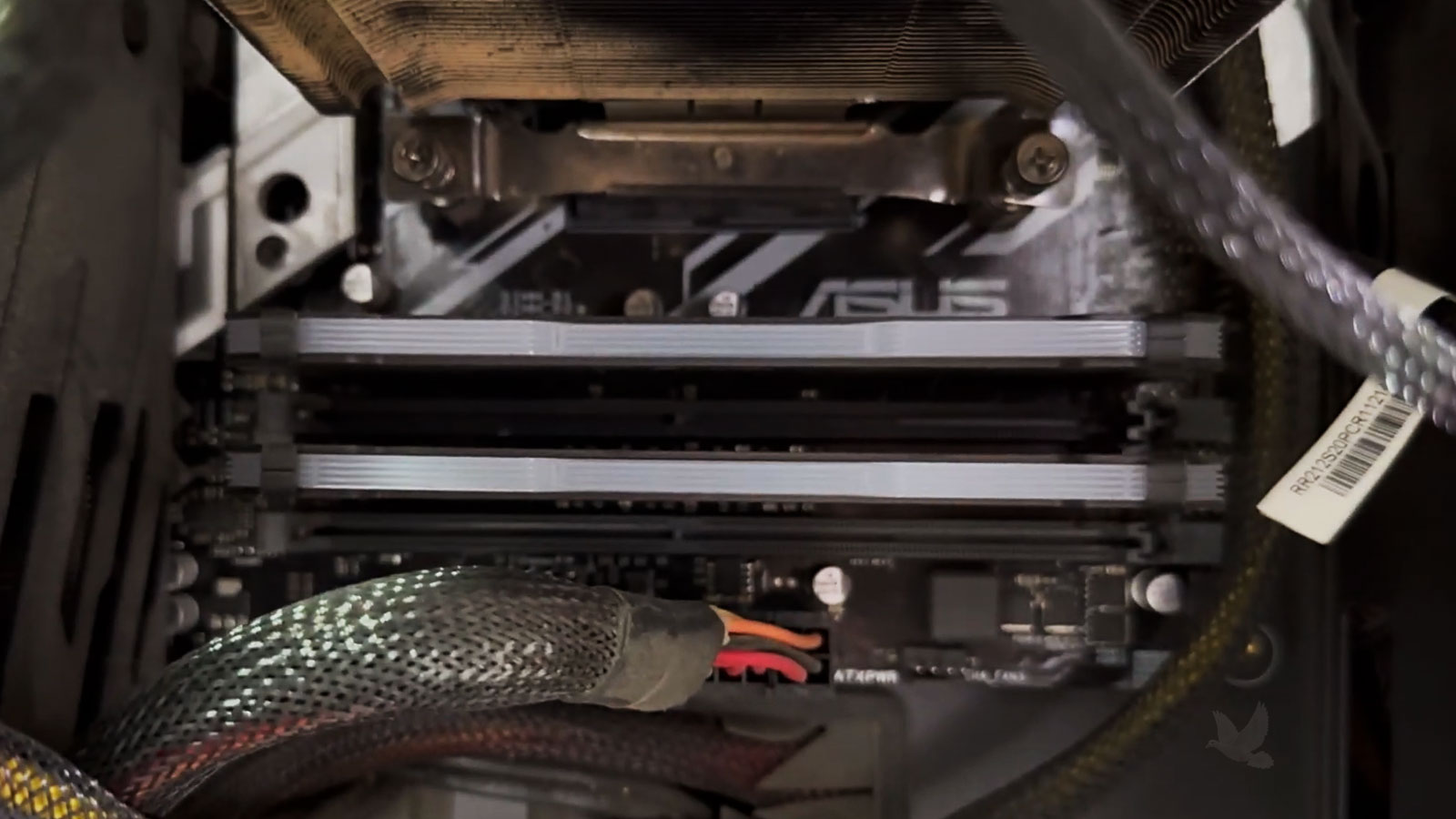
Cleaning inside a desktop is different from wiping dust from its exterior. Fans, connectors, circuit boards, cooling assemblies, and expansion cards can be damaged by careless handling, while simply blowing debris around the case may move contamination from one component to another without actually removing it.
Cleaning Creates an Opportunity to Notice Developing Problems
Once dust and debris are removed, the condition of the hardware becomes easier to evaluate. Maintenance can reveal changes that may not yet be causing a noticeable failure but are worth recognizing before the computer is returned to regular use.
Cooling Condition
Fans that wobble, produce unusual bearing noise, turn inconsistently, or show physical wear may still operate while providing less dependable cooling. Heat sinks and mounting hardware can also be examined for conditions that deserve attention.
Physical Condition
Fans that wobble, produce unusual bearing noise, turn inconsistently, or show physical wear may still operate while providing less dependable cooling. Heat sinks and mounting hardware can also be examined for conditions that deserve attention.
Overall System Condition
Maintenance can also expose circumstances that affect future reliability, such as heavily restricted ventilation, deteriorating fans, poor cable routing, or a case environment that repeatedly collects excessive debris.
How Often a Desktop Needs Cleaning Depends on Its Environment
There is no single maintenance interval that is appropriate for every desktop. How quickly contamination develops depends on where the computer operates, how much air it moves, how frequently it is used, and what is present in the surrounding environment. The condition inside the case is more meaningful than following an arbitrary calendar date.
| Operating Environment | What May Affect Maintenance Needs |
|---|---|
| Typical Home or Office | Normal household or office dust gradually enters through vents and cooling fans during everyday operation. |
| Homes With Pets | Hair and fine debris can collect around filters, intakes, fans, and heat sinks more quickly. |
| Floor-Level Placement | Desktops positioned on or close to the floor may draw in more dust, fibers, and debris than systems kept higher. |
| Heavy or Continuous Use | Gaming, production work, or long operating hours can keep cooling fans moving considerably more air through the case. |
| Dusty Work Areas | Workshops, renovation areas, and other environments with elevated airborne particles can require closer attention. |
Visible buildup around ventilation openings, increasingly noisy fans, or a noticeable change in operating temperatures can be more useful indicators than simply waiting for a predetermined maintenance date. A system that remains relatively clean may need attention less frequently, while another desktop in a harsher environment can accumulate substantial debris much sooner.
Some Symptoms Point Beyond Routine Maintenance
A heavily contaminated desktop can certainly develop cooling problems, excessive fan noise, or instability under load. But cleaning should not become an automatic explanation for every computer that freezes, shuts down, refuses to start, or behaves unpredictably.
When a symptom remains after airflow and cooling conditions have been addressed, the next step is diagnosis rather than additional cleaning.
Problems That May Need Further Diagnosis
Certain symptoms can overlap with maintenance-related problems while also being caused by failing hardware, power delivery issues, storage problems, memory faults, damaged components, or other conditions that require troubleshooting.
Computer Will Not Start
A no-power or no-boot condition may involve considerably more than dust or cooling and should be evaluated according to the actual failure.
Instability Continues After Cleaning
Persistent freezing, restarting, display loss, or shutdowns can indicate a problem that maintenance alone cannot resolve.
Visible Hardware Damage
Burned areas, damaged connectors, corrosion, leaking or swollen components, and other physical abnormalities should be treated as repair concerns rather than ordinary cleaning.
Maintenance Makes the Most Sense Before Buildup Becomes a Bigger Problem
A desktop does not have to be overheating or malfunctioning before internal maintenance becomes worthwhile. Removing accumulated contamination, checking the cooling system, and examining the physical condition of the hardware can address developing concerns while the computer is still operating normally.
A Practical Time to Have the Computer Serviced
Maintenance may be appropriate when a desktop has gone a long period without internal cleaning, has been operating in a dusty environment, is collecting visible debris around its ventilation areas, or has begun running hotter or louder than it once did.
The condition of the system should determine what actually needs attention. A relatively clean computer may require little intervention, while heavier accumulation can justify more thorough cleaning and closer inspection of the cooling hardware.
When the Computer Is Due for Attention
Desktop cleaning and maintenance is available for systems that need internal cleaning, cooling-system attention, or a general physical inspection. If the computer is also showing signs of a separate failure, the problem can be evaluated rather than assuming maintenance alone will correct it.