
Different Computers Create Different Repair Priorities
A Home PC and a Business Workstation Can Fail in the Same Way
A computer does not know whether it is sitting in a home office, reception area, warehouse, studio, or accounting department. Power supplies fail, storage devices develop problems, operating systems become corrupted, memory produces errors, cooling systems deteriorate, and motherboard components can be physically or electrically damaged.
What changes is the effect of the failure. A home computer may contain years of photographs and personal documents. A business system may control access to applications, customer records, specialized equipment, shared resources, or work that other people depend on. Repair therefore involves understanding both the technical problem and what normal operation means for that particular computer.
The Hardware Can Be Similar While the Priorities Are Different
The same failed component can create very different consequences depending on what the computer does, what information it contains, and how many other activities depend on it.
The Reported Problem Is the Beginning of the Diagnosis
A computer may arrive because it will not turn on, runs slowly, freezes, restarts, produces errors, cannot reach the operating system, loses network access, overheats, or no longer recognizes a particular device.
Those descriptions identify symptoms rather than automatically identifying failed parts. Diagnosis becomes more precise by determining when the problem occurs, what changed beforehand, and which functions continue to operate normally.
What Was the Computer Doing When the Problem Appeared?
A failure that began after an upgrade, electrical event, impact, software change, overheating episode, or previous repair can provide useful context for deciding where testing should begin.
Personal Systems Often Carry More Than Their Replacement Value Suggests
A home computer can contain family photographs, documents, tax records, saved projects, email archives, application data, and years of information that may not exist anywhere else.
That makes data preservation part of the repair decision. A computer that can be replaced easily may still contain information that cannot.
The Computer and the Data Are Two Different Assets
Replacing failed hardware can restore access to a working computer without recovering information that existed only on the original storage device.
A Business Computer Can Be Part of a Larger Workflow
A workstation may depend on specific applications, printers, scanners, network shares, databases, peripheral devices, security settings, or configurations used as part of daily operations.
Returning the computer to service can therefore require more than making Windows start. The functions that make the system useful in its working environment need to operate correctly as well.
Applications
Specialized programs and their configuration can be essential to the work performed on the computer.
Data
Local files, databases, profiles, and other stored information can influence the repair and recovery strategy.
Connections
Network resources and attached equipment may need to function normally before the system is truly ready to return to work.
The Cost of a Failure Is Not Always the Cost of the Part
A small hardware component can stop an entire workstation. When that computer is needed for daily work, the practical cost can come from lost access, interrupted tasks, delayed communication, or employees waiting for the system to return.
That does not mean every repair should be rushed. It means diagnosis should remain focused so time is spent establishing the failure rather than replacing unrelated components.
Fast and Accurate Should Work Together
A quick repair that does not correct the actual failure can create more downtime when the computer returns with the same problem.
A Computer That Does Nothing Requires a Power Diagnosis
If pressing the power button produces no normal response, the investigation can begin with the electrical path. The outlet, power cable, adapter where applicable, desktop power supply, power button circuitry, and motherboard all become possible parts of that path.
Any lights, fan movement, sounds, or other activity should also be noted because a computer receiving some power presents a different condition from one receiving none.
No Display Is Not the Same as No Power
A computer with running fans and indicator lights may have a display, memory, graphics, processor, firmware, or startup problem rather than a complete loss of electrical power.
A Slow Computer Needs a Bottleneck Identified
Performance can be affected by processor activity, available memory, storage response, temperature, operating-system conditions, background applications, malware, or the demands placed on the hardware.
Deleting files or installing optimization utilities without identifying the limiting resource can change the computer without correcting the reason it became slow.
Processor
Unexpected or sustained CPU demand can reduce responsiveness when other work competes for processing time.
Memory
Insufficient available RAM can increase reliance on storage and make demanding workloads noticeably less responsive.
Storage
A slow or failing drive can delay startup, applications, file access, and operations throughout the system.
Performance Problems Can Become Data Problems
A storage device that begins producing errors, disappearing, freezing during access, or making abnormal mechanical sounds deserves attention beyond ordinary performance troubleshooting.
If important information exists only on that device, continued operation can become a data-preservation decision as well as a computer-repair decision.
Protect Important Information Before Stressing a Failing Drive
Repeated scans, installations, updates, and ordinary computer use can be inappropriate when the storage device itself is showing signs of physical or electrical failure.
Unstable RAM Can Produce Problems That Look Like Software Failures
Memory errors can contribute to crashes, corrupted operations, failed startup, application errors, and unexpected restarts. The symptoms can appear inconsistent because different data occupies different memory locations over time.
Memory testing and component isolation can help determine whether instability follows a particular module, slot, configuration, or another part of the system.
Intermittent Does Not Mean Imaginary
A hardware fault can appear only under particular temperatures, workloads, memory usage patterns, or physical conditions and still be completely real.
Heat Can Reduce Performance Before the Computer Stops Working
Processors, graphics hardware, voltage regulators, and other components produce heat during operation. Heatsinks, fans, thermal interfaces, and airflow move that heat away from sensitive components.
If cooling becomes inadequate, the computer can reduce performance, become unstable, shut down, or experience long-term stress on components operating at elevated temperatures.
Look for Behavior That Changes With Temperature
A computer that works normally when first started but becomes unstable after sustained use may provide a useful thermal pattern for diagnosis.
Not Every Computer Failure Requires Opening the Case
Operating-system corruption, driver problems, application conflicts, unwanted software, failed updates, damaged system files, and configuration errors can interrupt normal operation while the hardware remains functional.
The repair process should distinguish software behavior from hardware failure before physical components are replaced unnecessarily.
Hardware and Software Can Produce Similar Symptoms
A startup failure or system crash does not identify its own cause. Evidence from logs, diagnostics, hardware tests, and repeatable behavior helps separate the possibilities.
A Working Computer Can Still Be Unable to Do Its Job
Business systems often depend on network access for shared files, cloud applications, printers, authentication, communication, or other resources. A workstation can therefore appear functional locally while remaining unusable for its normal work.
Network diagnosis separates the computer’s own adapter and configuration from cabling, wireless conditions, switches, routers, addressing, name resolution, and external services.
Is the Problem Local to One Computer?
Comparing affected and unaffected devices can quickly determine whether investigation should remain on the workstation or move outward into the network.
Some Failures Begin With Mechanical Damage Rather Than Electronics
Connectors can break, circuit boards can flex, sockets can be damaged, cooling assemblies can be displaced, and components can lose reliable contact after impact, improper installation, or previous service work.
Physical inspection becomes especially important when a problem begins immediately after hardware was installed, removed, transported, or handled.
The History of the Hardware Matters
A computer that stopped working immediately after a processor upgrade presents a different diagnostic path from one that failed while sitting untouched under normal use.
The CPU Socket Creates Hundreds of Critical Electrical Connections
Modern processor sockets provide the electrical interface between the CPU and motherboard. Depending on the platform, a large number of small contacts connect processor power, memory channels, data paths, control signals, and other functions.
Damage to even a small number of those contacts can interfere with startup or disable functions that initially seem unrelated to the processor socket.
One Damaged Contact Can Affect an Entire System
A socket pin does not need to look dramatically broken to prevent the electrical connection assigned to that contact from operating correctly.
The Business PC Has a Damaged Contact Inside the CPU Socket
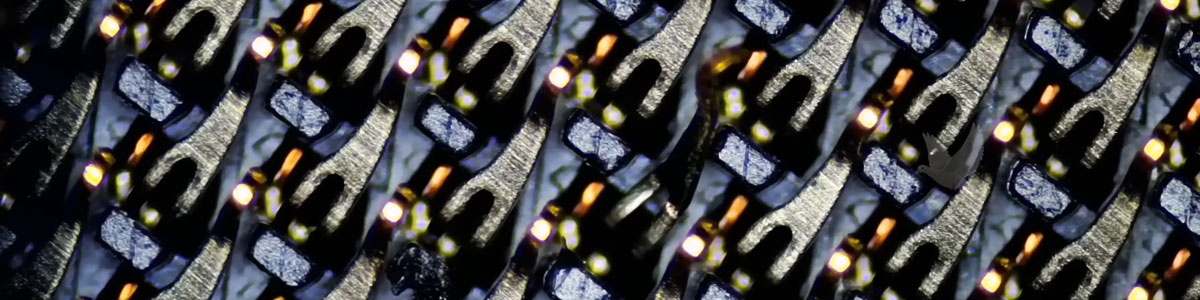
The motherboard shown in the article image has physical damage inside the processor socket. One of the socket contacts appears out of its proper position and requires careful correction before the processor can make the intended connection.
This type of problem demonstrates why motherboard inspection matters. The processor itself can be functional while the electrical interface between the CPU and motherboard prevents the system from operating normally.
The processor and motherboard can both be good while a damaged contact between them prevents the computer from working.
Magnification Helps Show How the Damaged Contact Differs From the Others
CPU socket contacts follow a highly organized pattern. Under magnification, a bent or displaced contact can often be identified because its position, angle, or height differs from neighboring contacts.
The surrounding area should also be inspected for additional damage, contamination, foreign material, or evidence that more than one contact was affected.
Use the Neighboring Contacts as a Visual Reference
The repeated geometry of an undamaged socket can help reveal when one contact no longer follows the intended pattern.
Processor Installation Requires Alignment Rather Than Force
Socket damage can occur when a processor is installed incorrectly, removed carelessly, dropped into the socket, shifted against the contacts, or handled while foreign material is present.
The retention mechanism is designed to secure a correctly positioned processor. It should not be used to force a misaligned CPU into place.
Stop if the Processor Does Not Seat Normally
Applying additional force to a misaligned processor can turn an installation problem into permanent socket or motherboard damage.
Correcting a Bent Contact Requires Very Small Controlled Movement
A displaced socket contact may sometimes be returned toward its intended position when the contact itself and surrounding socket remain repairable.
The work requires magnification, a stable board, appropriate tools, and careful comparison with adjacent contacts. Excessive movement can weaken or break the contact rather than restore it.
A Bent Contact Is Delicate Metal
Repeated bending can fatigue the contact. The objective is controlled correction, not moving it back and forth until it appears approximately straight.
A Missing or Fractured Socket Contact Creates a Different Repair Problem
A contact that has broken away cannot be corrected simply by repositioning it. The available repair options depend on the socket construction, the location of the damage, motherboard design, and whether the required connection can be restored reliably.
At that point, motherboard replacement or more extensive socket-level work may need to be considered.
Bent and Broken Are Not the Same Condition
A contact that remains intact but displaced presents a fundamentally different repair opportunity from one that has fractured or disappeared.
The Entire Socket Should Be Checked After the Visible Pin Is Corrected
Finding one obvious damaged contact does not prove that every neighboring contact is correctly positioned. The socket should be inspected systematically before the processor is returned.
Foreign material should also be considered because contamination between contacts or beneath the processor can interfere with normal seating and electrical connection.
Do Not Stop at the First Visible Problem
The obvious damaged pin may explain the failure, but a complete inspection reduces the chance of overlooking another contact affected during the same incident.
The CPU Should Return to the Socket in the Correct Orientation
Processor and socket alignment features establish the intended orientation. Once correctly positioned, the CPU should sit as designed before the retention mechanism is secured.
The processor contact surfaces and socket should be kept free from contamination during this process.
Alignment Features Exist for a Reason
Matching the processor to the socket orientation before applying retention pressure helps prevent the same type of mechanical damage that required repair.
A Successful Power-On Does Not Complete CPU Socket Verification
If the computer starts after socket repair, the result provides strong evidence that the corrected contact was important. Additional testing is still appropriate because individual socket contacts can serve functions that may not be exercised during the first seconds of startup.
Memory detection, processor stability, integrated graphics where applicable, expansion devices, temperatures, and other relevant functions can be checked according to the system configuration.
Booting Is the First Test
The computer should also remain stable while performing the work expected from the repaired processor, memory subsystem, and motherboard.
The Repaired Computer Should Be Tested for the Work It Actually Performs
A business workstation may use applications or peripherals that ordinary startup testing never touches. Once the hardware is stable, the computer should be checked against the functions relevant to its normal role.
That can include network resources, local applications, attached devices, printing, storage access, or other systems needed for everyday operation.
Hardware Stability
Verify processor, memory, storage, temperatures, and other relevant hardware after the motherboard repair.
Operating System
Confirm that the computer starts reliably and the operating system remains stable during normal use.
Work Functions
Check the applications, network resources, and peripherals that make the workstation useful in its business environment.
The Best Decision Depends on More Than the Age of the Computer
A damaged motherboard does not automatically mean the entire system should be discarded. The repair decision can consider the nature of the failure, condition of the remaining hardware, replacement cost, required software, available parts, data, and the role the computer performs.
For some systems, replacement is the practical choice. For others, correcting a localized fault can preserve a computer that remains well suited to its workload.
What Does Returning This Computer to Service Preserve?
The answer may include hardware value, but it can also include software configuration, compatibility with specialized equipment, data access, and reduced disruption to an established workflow.
Computer Repair Should Follow the Failure Wherever It Leads
Home computers and business systems share many of the same technologies, but the importance of a repair depends on what each machine contains and what depends on it. Some problems remain entirely in software. Others lead to storage, memory, cooling, power supplies, or motherboard circuitry.
The business PC shown above demonstrates how specific that investigation can become. A system-level failure ultimately reaches one damaged contact inside the CPU socket. Correcting that tiny physical defect requires precision, but the repair does not end there. The processor, memory, motherboard, operating system, and the computer’s actual working functions still need to prove that the system is ready to return to reliable use.
