
A MacBook Air Works Better When the Software Fits the User
Software configuration is what turns a MacBook Air from a computer with macOS installed into a system prepared for the way it will actually be used. Applications, system preferences, accounts, updates, permissions, and connected services can all affect how smoothly everyday work gets done.
The right setup is not identical for everyone. A MacBook Air used primarily for business may need a very different collection of applications and account settings from one used for school, personal tasks, creative work, or a combination of several purposes.
The objective is a configuration that makes sense as a whole, with the necessary software installed and the important settings arranged around the person who will actually use the Mac.
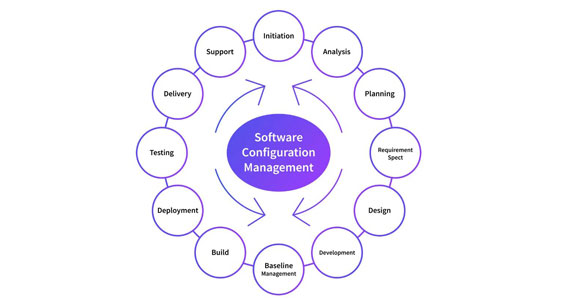
Decide What Is Needed Before Changing the Mac
A useful software configuration begins with the purpose of the MacBook Air. The applications, accounts, services, and system settings needed for one person may be unnecessary for another, so configuration should begin by identifying what the computer is expected to handle.
That can include the programs required for work or school, cloud services that need to remain synchronized, printers or other devices the Mac will use, and preferences that affect normal day-to-day operation.
Build the Setup Around Those Requirements
Once those needs are clear, applications and settings can be configured in a more deliberate order. Required software can be installed, accounts connected, relevant macOS options adjusted, and the resulting setup checked to make sure the pieces work together as expected.
This approach also helps avoid filling the MacBook Air with programs, services, or background items that have no practical role in how the computer will actually be used.
Every Application Should Have a Reason to Be There
Installing software is easy. Building a clean MacBook Air setup requires deciding what belongs on the system, where it should come from, and what it needs in order to function correctly without adding unnecessary applications or background activity.
Required Applications
Start with the programs the MacBook Air actually needs for its intended work, school, communication, or personal use.Install With Purpose
Prioritizing necessary applications keeps the setup focused and makes it easier to identify software that has a genuine role instead of installing programs simply because they might eventually be useful.
Compatible Versions
The application and its version need to be appropriate for the macOS release and MacBook Air being configured.Check Before Installing
Software requirements can vary between versions. Confirming compatibility first helps avoid installing an application that cannot operate properly with the current system configuration.
Permissions
Some applications require access to files, folders, the microphone, camera, or other macOS functions.Grant What Is Needed
Permissions can be configured according to the application’s actual function rather than approving access without considering why the software needs it.
Startup Behavior
Applications and services do not necessarily need to launch every time the MacBook Air starts.Keep Startup Focused
Reviewing unnecessary login and background items can reduce clutter at startup while preserving the applications and services that genuinely need to remain available.
User Accounts
The accounts added to a MacBook Air determine who can access the computer and what level of control each person has. Separate accounts can also keep individual files, preferences, and application settings from becoming mixed together.
Administrative access should be assigned deliberately rather than given to every account automatically.
Connected Services Need to Work Together
A MacBook Air often depends on more than applications installed directly on the computer. Email, calendars, contacts, cloud storage, browser synchronization, and other online services may all be part of the everyday setup.
Connecting those services correctly helps information remain available where it is expected without requiring the user to repeatedly sign in or manually move the same files between locations.
Synchronization settings also deserve attention. Not every service needs to synchronize everything it supports, and some accounts may serve only one particular purpose. Configuring each connection around what is actually needed can keep the MacBook Air organized while avoiding unnecessary activity.
iCloud Settings
iCloud can connect files, photos, passwords, contacts, calendars, and other information across supported Apple devices. The appropriate options depend on which information the user actually wants synchronized.
Those choices can be reviewed individually instead of enabling every available service by default.
macOS Settings Should Serve a Practical Purpose
System Settings provides control over many parts of everyday MacBook Air behavior. The useful changes are the ones that make the computer easier to use, give applications appropriate access, or configure functions around what the user actually needs.
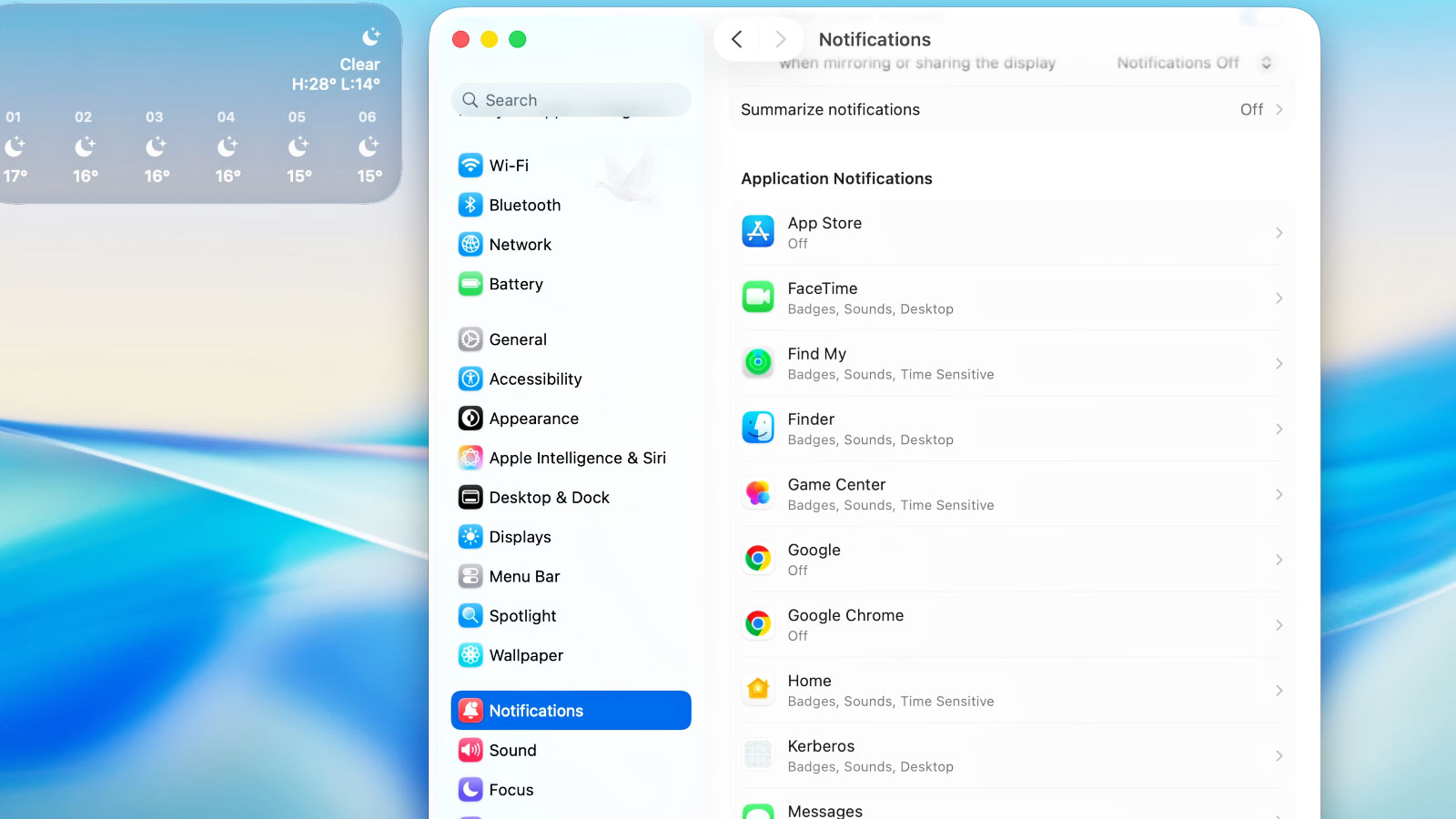
Settings Worth Reviewing
Not every macOS preference needs to be changed. A useful configuration focuses on the settings that affect everyday operation, application access, startup behavior, and the way the user interacts with the MacBook Air.
Updates Are Part of Keeping the Configuration Usable
macOS and application updates can improve compatibility, security, and functionality, but updating everything without considering the existing setup is not always the best approach. The software already in use and the requirements of the MacBook Air should be considered before significant changes are made.
| What to Review | Why It Matters | What to Check |
|---|---|---|
| macOS Version | A newer system version can change compatibility with applications and connected devices. | Confirm that important software and required hardware support the intended macOS version. |
| Applications | Programs may require their own updates to remain compatible with macOS or other software. | Review applications that are important to everyday use before changing the surrounding configuration. |
| Connected Devices | Printers, scanners, storage devices, and other hardware can depend on compatible software or drivers. | Check devices that need to continue working after system or software changes. |
| Account Services | Updates can occasionally introduce new prompts, permissions, or sign-in requirements. | Confirm that necessary accounts and synchronized services remain accessible after configuration changes. |
The Finished Setup Should Work as One System
Individual settings can look correct on their own while something is still missing from the overall configuration. A final review brings the applications, accounts, system preferences, and connected services together before the MacBook Air is considered ready for everyday use.
Applications
Accounts and Services
macOS Behavior
When the Mac Needs More Than Default Settings
A MacBook Air may need configuration after a new setup, macOS changes, application installation, account changes, or when the existing software environment simply no longer fits the way the computer is being used.
The objective is not to change everything. It is to identify what the user needs and configure the applications, accounts, services, and relevant macOS settings around those requirements.
Have the MacBook Air Configured for the Way You Use It
MacBook Air software configuration is available in Miami for application setup, macOS preferences, user accounts, connected services, permissions, synchronization, and other software settings that need to work together as a practical everyday system.
Free pickup and delivery are available within Miami when needed.