
Storage
Mechanical wear, read errors, or deteriorating disk performance can turn ordinary storage activity into delays, freezing, and unreliable access to files.
When the Drive Becomes the Weakest Part of an iMac
A hard drive can continue operating while becoming progressively less dependable. An iMac may still start and appear usable, yet take increasingly longer to open applications, access files, complete updates, or respond when storage activity increases.
Hard drive replacement becomes relevant when testing establishes that the existing storage device is responsible for the problem or when an aging mechanical drive is being intentionally replaced as part of a storage upgrade. The replacement should fit the particular iMac and the reason the original drive is being changed.
Performance
Storage affects far more than available capacity. The drive’s ability to retrieve and write information influences startup, application loading, file access, and the overall responsiveness of the system.
The Replacement Drive Should Match the Reason for the Change
Replacing storage is not simply a matter of removing one drive and installing another. Capacity, drive technology, compatibility, and the condition of the existing storage all influence what makes sense for a particular iMac.
When the original hard drive is developing read errors, becoming unreliable, or preventing normal operation, replacement begins with the condition of that drive. If important data remains accessible, preserving it may need to take priority before additional activity places more demand on deteriorating storage.
The new drive can then be chosen independently of the failed device’s limitations rather than automatically duplicating the storage configuration that originally came with the iMac.
Replacing a mechanical hard drive with solid-state storage can change how quickly the iMac accesses information because an SSD does not depend on moving platters and read heads. Startup, application loading, file access, and other storage-dependent operations can benefit from the different technology.
The appropriate installation still depends on the particular iMac. Physical mounting, connections, temperature monitoring, and the existing storage arrangement need to be considered rather than treating an SSD as a universal drop-in replacement.
A functioning drive may also be replaced because its available space no longer fits how the iMac is being used. Photos, video projects, applications, local archives, and other large collections can eventually make the original capacity restrictive even when the drive itself has not failed.
In that situation, the replacement can be planned around both present storage requirements and reasonable future growth instead of waiting until insufficient free space becomes a daily limitation.
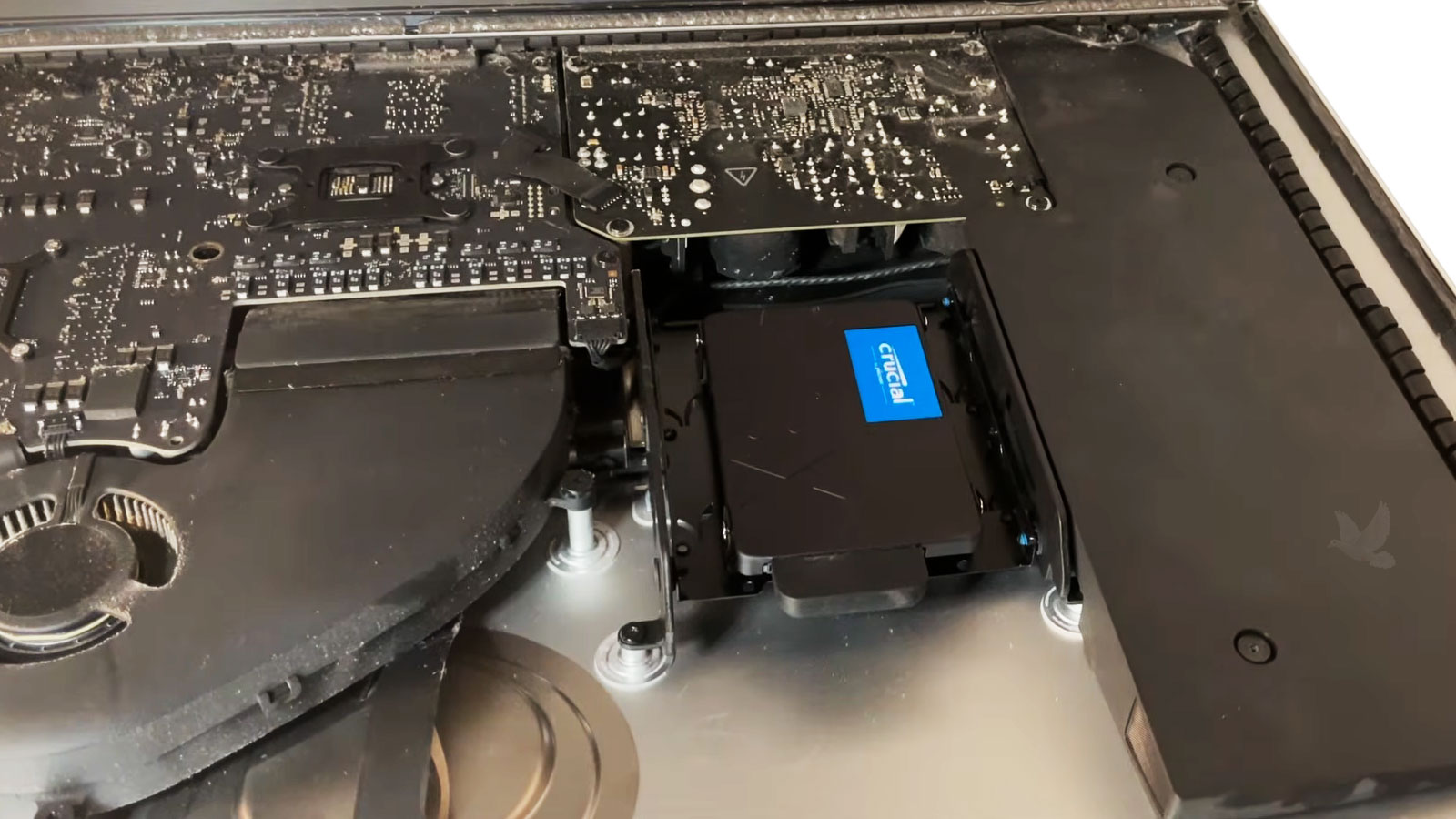
Replacing the Drive Requires Access Inside the iMac
On iMac models where the storage device is internal, replacing it requires opening the computer and reaching the drive without disturbing surrounding hardware unnecessarily. The display, internal connections, mounting arrangement, and components positioned around the storage area all make the physical procedure different from changing a drive in an easily accessible desktop enclosure.
The installation also has to account for how the replacement device will be secured and connected inside that particular model. When solid-state storage replaces a larger mechanical drive, the difference in physical format may require an appropriate mounting solution rather than leaving the new device unsupported inside the enclosure.
A New Drive Does Not Automatically Mean Starting Over
Replacing the storage hardware and deciding what should happen to the information on the original drive are separate parts of the process. The condition of the old drive determines which options remain practical, especially when existing files, applications, settings, or a familiar working environment need to be preserved.
The Installation Is Not Finished When the New Drive Is Connected
A newly installed drive is only the physical foundation. Before the iMac can return to normal use, the storage has to be prepared appropriately and the computer needs a working environment from which it can start. What happens at this stage depends on whether the goal is a fresh installation, restoration from an existing source, or continuation of the previous system.
This is also where a successful hardware installation can be separated from a complete storage replacement. The iMac should recognize the new device consistently, the intended storage capacity should be available, and startup should occur from the correct drive rather than from temporary installation media or another connected source.
Once the operating environment is in place, basic storage activity can be checked before the computer returns to regular use. That final verification helps confirm that the replacement is functioning as installed rather than assuming success simply because the iMac recognizes the device.
Prepare
The replacement storage needs the appropriate structure before it can hold the operating system and become the iMac’s working drive.
Verify
Recognition, available capacity, startup behavior, and ordinary storage activity can be checked before the replacement is considered complete.
Mechanical Drives and SSDs Change the iMac in Different Ways
A replacement does not necessarily have to reproduce the storage technology originally installed in the iMac. Understanding the practical differences between a mechanical hard drive and solid-state storage helps determine what kind of replacement makes sense for the computer and how it will be used afterward.
| Consideration | Mechanical Hard Drive | Solid-State Drive |
|---|---|---|
| How data is accessed | Information is read from rotating platters by moving mechanical components inside the drive. | Information is accessed electronically from flash storage without moving internal parts. |
| Everyday responsiveness | Storage-dependent operations remain limited by the mechanical movement required to locate and retrieve information. | Faster access can make startup, application launches, file opening, and other storage-dependent activity feel considerably more responsive. |
| Noise and vibration | Moving components can produce normal operating sound and some vibration inside the iMac. | With no spinning platters or moving read heads, the storage device itself operates silently. |
| Physical installation | A replacement with a similar physical format may fit the existing storage arrangement more directly. | A smaller SSD may require an appropriate adapter or mounting arrangement so it remains properly secured inside the iMac. |
| Reason for choosing it | It can remain practical when larger storage capacity is the main priority and mechanical storage suits the intended use. | It can be particularly attractive when the replacement is also intended to improve storage responsiveness while eliminating mechanical drive operation. |
Drive Recognition
The replacement should appear consistently to the iMac with the expected storage capacity available. Reliable detection helps confirm that the device, connection, and installation are functioning together as intended.
Startup Behavior
A completed replacement should allow the iMac to start from the intended storage without depending on temporary installation media or another connected device. Startup also provides an early opportunity to notice unexpected delays or storage-related errors.
Read and Write Activity
Opening, creating, copying, and saving information exercises the new storage beyond simple detection. Normal file activity helps confirm that the drive can perform its basic work consistently after installation.
Thermal Behavior
Some iMac storage configurations interact with temperature monitoring and fan behavior. After replacement, cooling should behave appropriately rather than leaving the computer with abnormal fan activity associated with the storage change.
Give the iMac Reliable Storage Again
iMac hard drive replacement service is available in Miami when an internal drive has failed, become unreliable, no longer provides enough capacity, or is being replaced with solid-state storage. The replacement can be approached according to the condition of the existing drive, the particular iMac, and what needs to happen with the information already stored on the computer.
Whether the goal is to restore dependable storage or move from an aging mechanical drive to an SSD, the work can include the physical installation, appropriate mounting, storage preparation, operating-system setup, data transfer when practical, and verification that the new drive is functioning correctly before the iMac returns to regular use.