
Moving Important Files From One Mac to Another
Replacing an iMac does not necessarily mean starting over with an empty computer. Documents, photographs, music, project folders, application data, user accounts, and other files accumulated over years may need to move from the existing Mac to another system while preserving the information that still matters.
The right transfer method depends on both computers involved, the condition of the original storage, the amount and type of data being moved, and whether the destination Mac is already in use. Planning around those details helps avoid unnecessary duplication, missing folders, overwritten information, or transferring years of unwanted material along with the files that actually need to be kept.
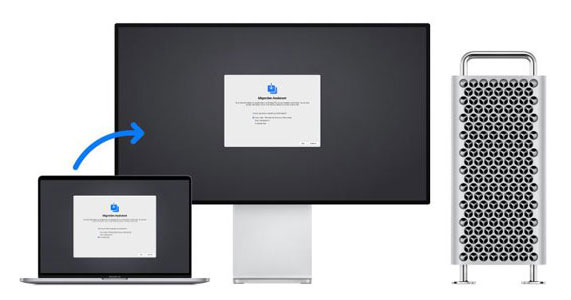
Choosing what should move before the transfer begins can make the destination Mac easier to organize from the start. It also creates an opportunity to distinguish irreplaceable information from data that can simply be downloaded, recreated, or left behind.
A Transfer Does Not Have to Bring Everything With It
Years of use can leave an iMac with a mixture of valuable personal files, active work, old downloads, duplicate media, temporary data, abandoned applications, and material that no longer serves a purpose. Moving all of it automatically may recreate the clutter of the old computer on the new one. A selective transfer can instead concentrate on the information that should continue forward.
The Best Transfer Method Depends on What Is Available
There is no single transfer method that fits every iMac. Whether the original computer still works, how its storage behaves, and what equipment is available can determine whether the information should move directly between Macs or take a different route.
Direct Mac-to-Mac Transfer
Useful when both computers remain operational and can communicate normally.Move Between Working Systems
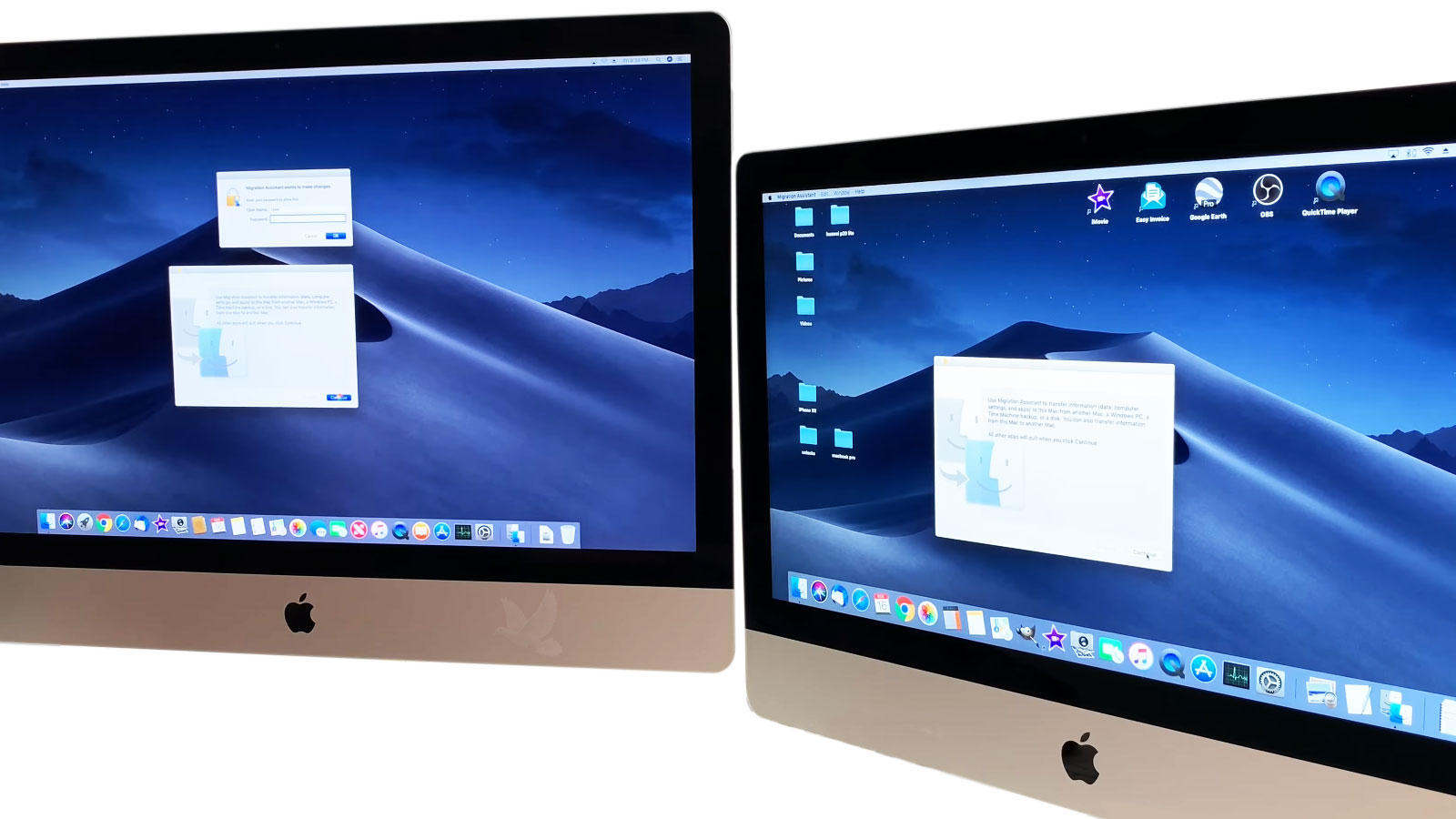
When the source iMac and destination Mac are both functioning properly, information can often be transferred directly between them. This can preserve a broad range of user data without first removing the internal storage.
External Storage Transfer
A separate drive can provide an intermediate destination for selected data.Transfer Through Another Device
Files can be copied from the iMac to suitable external storage and then placed onto the destination Mac. This approach can be useful when the computers cannot conveniently remain connected to one another during the entire process.
Transfer From the Internal Drive
A nonworking iMac does not always prevent its files from being moved.Access Storage Independently
If the computer itself has failed but its storage remains healthy and accessible, the data may be approached independently of the rest of the iMac. This separates the transfer from whatever hardware problem prevents normal use of the original machine.
Migration From a Backup
An existing backup may already contain much of the information that is needed.Use a Preserved Copy
When a suitable backup exists, it can provide another source for the transfer instead of relying entirely on the original iMac. The backup should first be considered in relation to its date and whether it contains the most recent versions of important files.
Not Everything Moves in Exactly the Same Way
A data transfer can involve much more than copying visible folders from one computer to another. Some information is straightforward to relocate, while other items depend on applications, accounts, permissions, synchronization, or the version of macOS running on the destination Mac.
| Type of information | What to consider during the transfer |
|---|---|
| Documents and personal folders | Ordinary files can generally be copied directly when they remain readable, but folder organization and duplicate versions should be considered before combining them with existing data on the destination. |
| Photos and media libraries | Libraries may contain databases, edits, albums, and organizational information in addition to the original media files. Moving the complete library can therefore be different from copying individual photographs or videos. |
| Applications | Copying an application file does not always reproduce a working installation. Some software requires installation components, licensing, account authentication, or a version compatible with the destination Mac. |
| Email and application data | Locally stored information may reside inside application-specific folders rather than obvious user directories. Account-based information may instead return through synchronization after the appropriate account is configured. |
| Settings and user accounts | Preferences and account-related information can sometimes be migrated, but bringing every old setting forward is not always desirable when the goal is to begin with a cleaner destination system. |
The Destination Mac Deserves Attention Before Files Arrive
A successful transfer is not determined only by what leaves the old iMac. The receiving Mac also needs to be considered so the incoming information has enough room, remains organized, and does not unnecessarily interfere with files that are already there.
Verify the New Mac Before Letting Go of the Old One
Seeing folders on the destination does not necessarily confirm that everything important arrived correctly. Before the original iMac is erased, recycled, traded in, or repurposed, the transferred information should be checked from the destination itself.
Open
Open a selection of important documents, photographs, videos, and project files rather than confirming their presence only by filename.
Compare
Check critical folders and libraries against the source so that missing material or obvious differences can be identified while both copies are still available.
Confirm
Make sure the information needed for everyday use is accessible from the destination Mac before making irreversible changes to the original storage.
The Old iMac Still Requires a Decision
Once the important information has been confirmed on the destination Mac, the original computer should not automatically be erased or discarded. What happens next depends on whether it will remain in use, change ownership, be stored as a temporary safeguard, or leave service completely.
Old Mac. New Destination.
When the Files Are Ready to Make the Move
iMac data transfer service is available in Miami when files, user folders, photo libraries, work projects, or other important information need to move from an existing Mac to another computer. The transfer can be planned around the condition of the source iMac, the destination system, the amount of data involved, and what actually needs to follow the user to the new machine.
The process can also include checking the transferred information before the original computer is cleared or repurposed, helping provide a sensible transition between the two systems rather than treating the job as a simple bulk copy from one drive to another.